
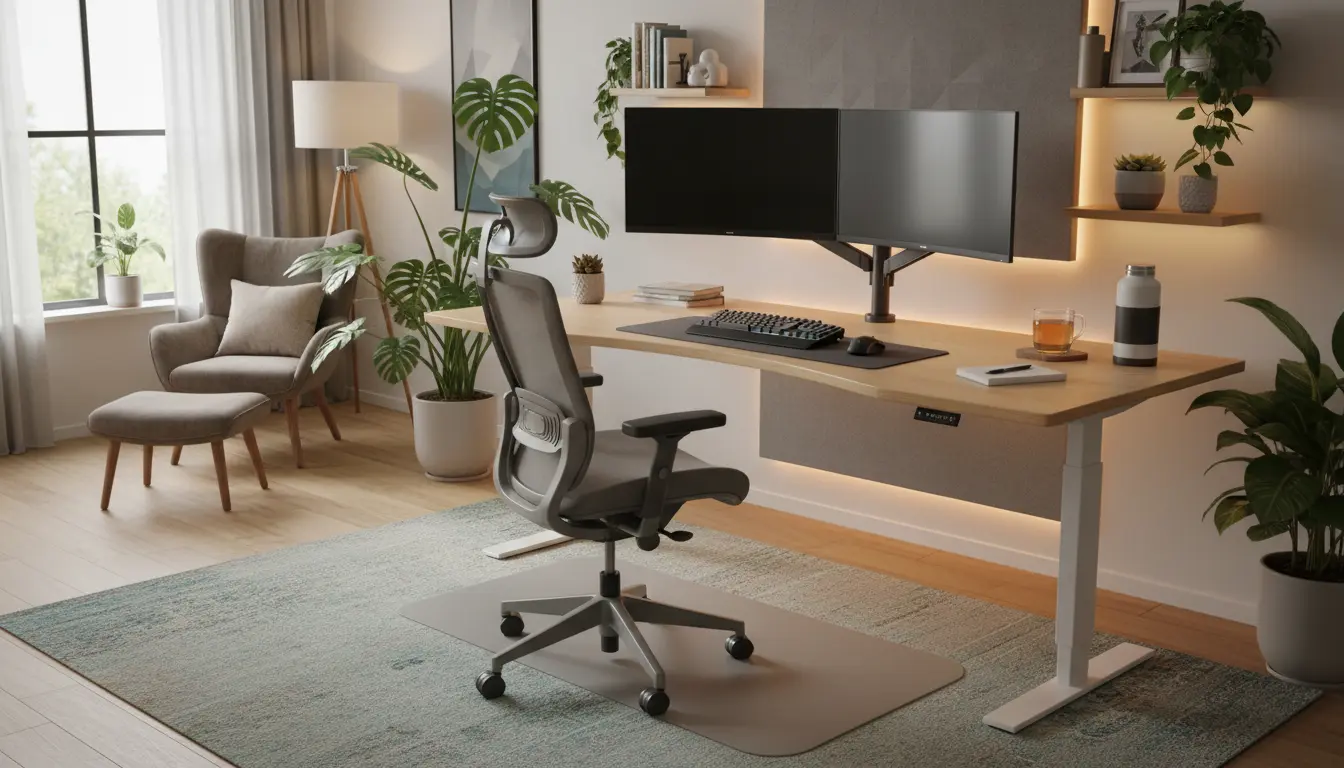
Why an Ergonomic Home Office Setup Matters
An ergonomic home office setup reduces the risk of pain and injury while improving comfort and focus. Small changes to chair height, monitor position, and desk arrangement can make a big difference over long workdays.
This guide shows practical steps you can apply with common equipment, plus a short case study and actionable checklists.
Basic Principles for an Ergonomic Home Office Setup
Ergonomics focuses on neutral body positions, support, and reducing repetitive strain. Aim to maintain a neutral spine, relaxed shoulders, and wrists that are straight while typing.
Follow these core principles when setting up your workspace.
Neutral Sitting Posture
Sit with your feet flat on the floor, knees at roughly 90 degrees, and hips slightly above knees if possible. Your lower back should have gentle support to maintain its natural curve.
Proper Monitor Placement
Position the top third of your monitor screen at or just below eye level. Place the monitor about an arm’s length away to reduce eye strain.
Keyboard and Mouse Position
Keep your keyboard and mouse close enough so your elbows remain near your sides. Your forearms should be roughly parallel to the floor, and wrists should be in a neutral position.
Step-by-Step Setup Checklist
Use this checklist to adjust your workspace. Complete each step and test how it feels after 15–30 minutes of work.
- Chair: Adjust seat height so feet are flat on the floor. Add lumbar support if needed.
- Desk: Ensure desk height allows forearms to rest parallel to the floor while typing.
- Monitor: Raise or lower monitor so top third is at or just below eye level.
- Keyboard: Place directly in front of you, leaving a 4–6 inch space at the front of the desk for wrist rest.
- Mouse: Keep next to keyboard; consider a vertical mouse if you have wrist pain.
- Lighting: Use soft task lighting to reduce glare and overhead strain on eyes.
- Breaks: Use a timer to stand or move 5 minutes every 30–60 minutes.
Affordable Ergonomic Upgrades
You don’t need expensive gear to improve ergonomics. Small investments can yield big comfort gains.
- Adjustable laptop stand or affordable monitor riser to get screen height right.
- Separate keyboard and mouse for laptop users to maintain good wrist position.
- Lumbar cushion or rolled towel to support lower back.
- Anti-fatigue mat if you use a standing desk part-time.
- External footrest if your feet do not reach the floor comfortably.
Example: Quick Desk Fixes
If your monitor is too low, stack a few sturdy books under it to lift it immediately. Use a shallow box under your keyboard if the desk edge digs into your wrists.
These quick fixes help you test changes before buying new equipment.
Short, frequent breaks improve focus and reduce musculoskeletal strain. Even a 2-minute walk every 30 minutes can lower fatigue and improve circulation.
Lighting and Screen Ergonomics
Lighting affects posture and eye comfort. Position your monitor to avoid glare from windows and overhead lights.
Consider these tips for better visual comfort.
- Use indirect natural light when possible; avoid direct light on the screen.
- Adjust screen brightness and contrast to match room lighting.
- Enable night mode or blue light filters in the evening to reduce eye strain.
- Increase text size and zoom for long reading sessions.
Movement, Stretching, and Routine
Sitting still for long periods negates ergonomic adjustments. Build movement into your day and use simple stretches to relieve tension.
- Set a timer for 25–50 minutes of work followed by 5–10 minutes of movement.
- Perform neck and shoulder rolls, wrist stretches, and standing calf raises.
- Alternate between sitting and standing if you have a sit-stand desk.
Simple Stretch Routine (3 minutes)
- Neck tilt left and right, hold each 10–15 seconds.
- Shoulder rolls, 10 forward, 10 backward.
- Wrist flex and extend, 10 each side.
Small Real-World Case Study
Case: Anna, a graphic designer, complained of neck and forearm pain after long work sessions. She worked from a laptop on a low table and used an office chair without lumbar support.
Intervention: Anna raised her laptop on a stand and added an external keyboard and mouse. She adjusted her chair height, added a lumbar cushion, and set reminders to stand every 45 minutes.
Outcome: Within two weeks Anna reported reduced neck tension and fewer wrist aches. Her focus improved because she no longer shifted repeatedly to find a comfortable position.
Troubleshooting Common Problems
If pain persists after adjustments, try these steps:
- Reassess monitor height and distance. Slight changes can help.
- Test different chair settings or cushions for better lumbar support.
- Switch to an ergonomic keyboard or mouse if wrist pain continues.
- See a healthcare professional for persistent or severe pain.
Final Tips for an Ergonomic Home Office Setup
Start with small, measurable changes and test each one. Keep a log of comfort levels for a week to see what works.
Remember: ergonomics is about adapting the workspace to your body and work habits, not forcing your body to fit the setup.