
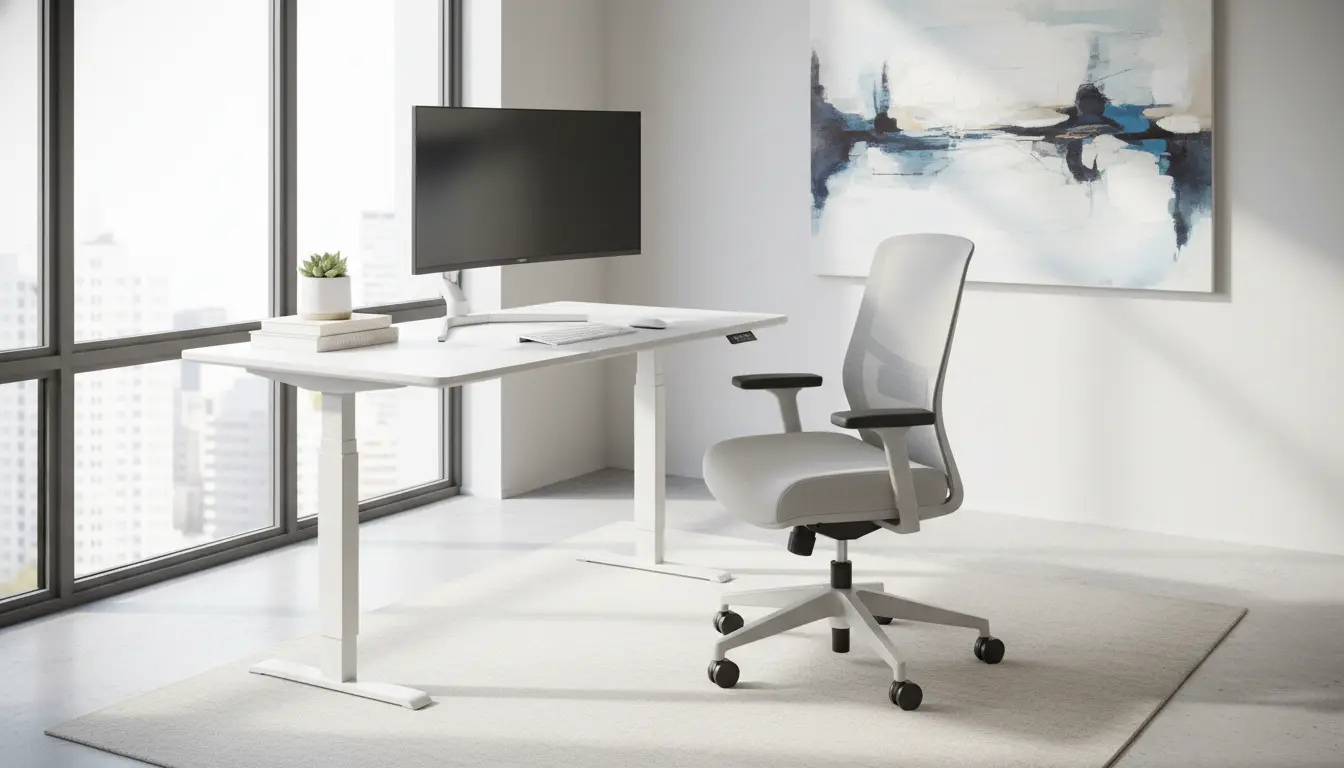
Many people working from home suffer aches, fatigue, and reduced focus because their workspace is not set up with ergonomics in mind. This guide explains straightforward adjustments you can make to reduce discomfort and improve productivity.
Why Home Office Ergonomics Matters
Good ergonomics reduces strain on your body and helps maintain consistent energy through the day. It also lowers the risk of long-term issues like neck pain, wrist strain, and lower back problems.
Small changes often yield big results. Focus on posture, equipment placement, and movement habits.
Key Elements of Home Office Ergonomics
Address five core areas to create an ergonomic home office: chair, desk, monitor, keyboard and mouse, and lighting. Each element affects posture and comfort.
Ergonomic Chair and Seating
Your chair should support the natural curve of your spine. Look for adjustable seat height, lumbar support, and a stable base.
- Adjust seat height so feet rest flat on the floor or on a footrest.
- Keep knees at roughly a 90-degree angle and hips slightly higher than knees if possible.
- Use lumbar support to maintain the lower back curve.
Desk Height and Work Surface
Desk height should allow your forearms to rest parallel to the floor when typing. If your desk is too high or too low, use an adjustable desk or keyboard tray.
Consider a sit-stand desk to alternate posture, reducing static load on any one area of the body.
Monitor Placement and Home Office Ergonomics
Position the monitor so the top of the screen is at or slightly below eye level. This reduces neck flexion and keeps your head balanced over the spine.
- Place monitor about an arm’s length away.
- Angle the screen to reduce glare and avoid awkward neck turns.
Keyboard, Mouse, and Input Devices
Keep input devices close to the body to avoid reaching. A negative tilt keyboard tray can help keep wrists neutral.
Consider an ergonomic mouse or vertical mouse if you experience wrist discomfort. Regularly rest wrists and use light keystrokes.
Lighting, Glare, and Visual Comfort
Good lighting reduces eye strain. Place the monitor perpendicular to windows to minimize glare. Use adjustable task lighting for paperwork.
Adjust screen brightness and text size to comfortable levels to avoid leaning forward or squinting.
Practical Setup Checklist for Home Office Ergonomics
Use this quick checklist to set up or audit your workspace. Make adjustments gradually and test comfort during normal work tasks.
- Chair: Adjust height, lumbar support, and armrests.
- Desk: Ensure proper height; add sit-stand option if possible.
- Monitor: Top at eye level, one arm’s length away.
- Keyboard/Mouse: Close to body; wrists neutral.
- Lighting: Reduce glare, adequate task light, screen contrast set.
- Movement: Stand and stretch every 30–60 minutes.
Simple Exercises and Movement Habits
Ergonomics is not only furniture. Regular movement prevents stiffness and supports circulation. Set reminders to change posture.
- Micro-breaks: 30–60 seconds to stretch shoulders and wrists every 30 minutes.
- Posture check: Sit tall, shoulders relaxed, feet grounded.
- Standing breaks: 5–10 minutes every hour if using a sit-stand desk.
Common Problems and Fixes in Home Office Ergonomics
Here are common complaints and practical fixes you can try immediately.
- Neck pain — raise or lower monitor, check chair height, avoid looking down at laptop.
- Wrist pain — use wrist support, adjust keyboard angle, try an ergonomic mouse.
- Lower back pain — improve lumbar support, reduce slouching, take standing breaks.
Alternating between sitting and standing every 30 to 60 minutes can reduce back pain and improve energy without harming productivity.
Real-World Example: Case Study
Maria, a freelance designer, experienced neck and shoulder pain after months of working at her kitchen table. She invested in a basic adjustable chair and a monitor stand.
Within two weeks she reported less neck pain and more focus. Adding a short stretch routine and a standing break every hour resolved the remaining discomfort.
Her takeaway: modest investment and simple habits delivered fast benefits.
Budget-Friendly Upgrades for Home Office Ergonomics
You don’t need expensive gear to improve ergonomics. Prioritize upgrades that address your main pain points.
- Monitor riser or stack of books — inexpensive way to raise screen height.
- Seat cushion or lumbar roll — improves back support quickly.
- External keyboard and mouse — essential if you use a laptop as your main device.
Next Steps and Ongoing Assessment
Set a date to reassess your setup in two weeks. Track any changes in discomfort and adjust incrementally. Ergonomics is iterative; small refinements add up.
If pain persists after adjustments, consult a healthcare professional or occupational therapist for tailored advice.
Use the checklist, try one change at a time, and prioritize movement. Good home office ergonomics helps you work comfortably and sustainably.