
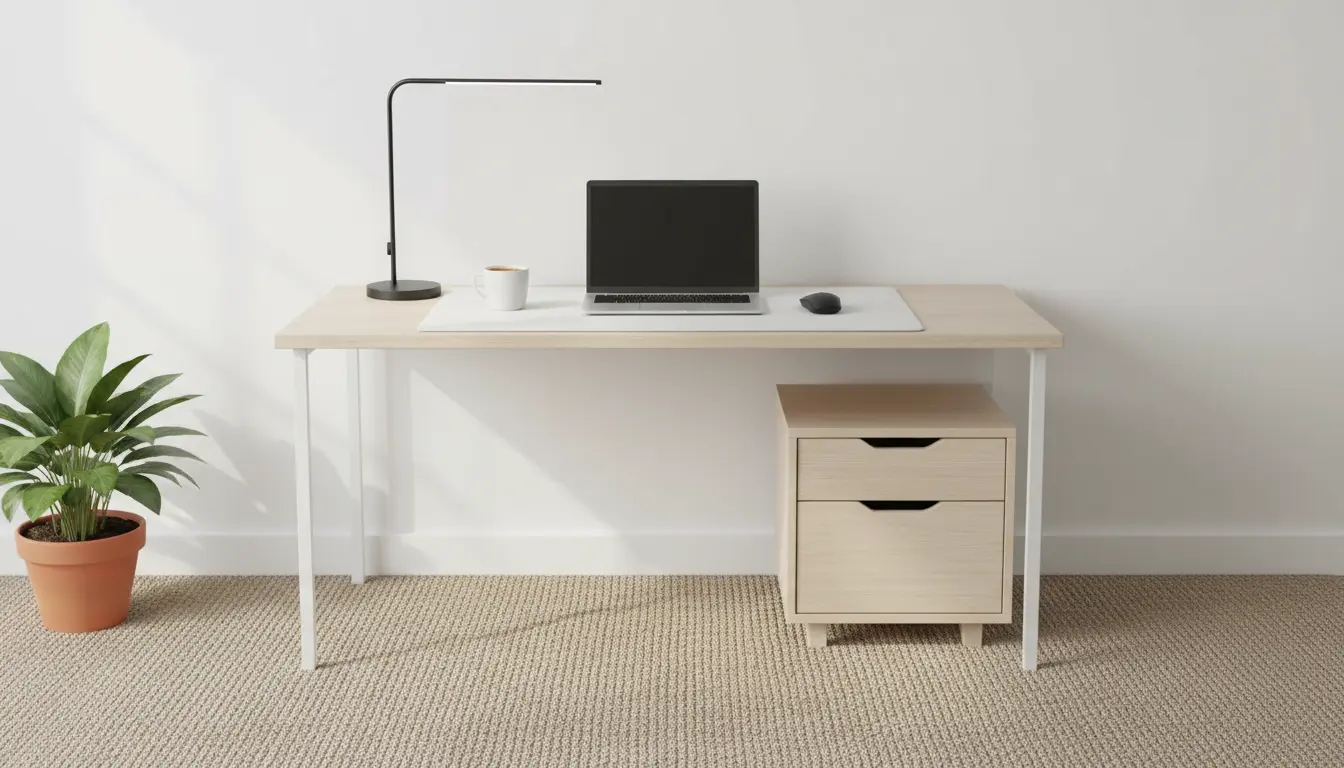
Home Office Ergonomics: Why It Matters
Home office ergonomics affects comfort, productivity, and long-term health. Small adjustments can prevent neck pain, back strain, and repetitive stress injuries.
This guide gives simple, actionable steps to make your workspace healthier using items you likely already have or can get affordably.
Home Office Ergonomics: Set Up Your Chair First
Chair adjustments are one of the fastest ways to improve posture. A properly adjusted chair supports your lower back and keeps feet flat on the floor.
If your chair is not adjustable, add a small cushion or lumbar roll to support the natural curve of the lower back.
Chair checklist for home office ergonomics
- Seat height: knees at or slightly below hip level.
- Seat depth: 1–2 inches gap between seat edge and back of knees.
- Back support: lumbar support or cushion for lower back curve.
- Armrests: support relaxed shoulders and elbows near 90 degrees.
Home Office Ergonomics: Position Your Monitor Correctly
Monitor height and distance influence neck and eye strain. Position the top of the screen at or slightly below eye level.
Keep the screen about an arm’s length away. Adjust text size and brightness to reduce squinting.
Monitor tips for comfort
- Use a laptop stand or monitor riser if the screen is too low.
- Consider an external keyboard and mouse to maintain a neutral wrist posture.
- Use a matte screen or anti-glare filter to minimize reflections.
Home Office Ergonomics: Desk Height and Layout
Your desk should allow your forearms to be parallel to the floor or slightly declined. Avoid hunching or raising shoulders to type.
Keep frequently used items within easy reach to avoid repetitive twisting or reaching that can strain the shoulders.
Desk layout ideas
- Place keyboard and mouse centered on your body.
- Use a document holder next to the monitor for reference papers.
- Clear clutter and route cables to keep the work area tidy and safe.
Home Office Ergonomics: Keyboard and Mouse Setup
Position the keyboard so your wrists are straight and not bent up or down. A slight negative tilt can help keep wrists neutral.
Choose a mouse that fits your hand and use keyboard shortcuts to reduce mouse use when possible.
Keyboard and mouse adjustments
- Wrist rests can reduce pressure but should not be used to rest wrists while typing.
- Keep the mouse close to the keyboard to limit reaching.
- Alternate hands for mouse use or use keyboard macros for heavy tasks.
Home Office Ergonomics: Lighting and Screen Breaks
Good lighting reduces eye strain and improves focus. Use a mix of ambient and task lighting, and position light sources to avoid screen glare.
Take short breaks often. The 20-20-20 rule is simple: every 20 minutes, look at something 20 feet away for 20 seconds.
Lighting and break practices
- Use a desk lamp with adjustable arm and color temperature if possible.
- Keep blinds or curtains adjusted to reduce direct sunlight on screens.
- Set a timer for micro-breaks: stand, stretch, and change posture every 30–60 minutes.
Home Office Ergonomics: Movement and Routine
No ergonomic setup replaces regular movement. Build simple movement into your day to reduce stiffness and boost circulation.
Walking meetings, standing phone calls, or mini-stretches at the desk help maintain energy and reduce pain risk.
Easy movement ideas
- Set a standing goal: 15–30 minutes every hour if you use a sit-stand desk.
- Do shoulder rolls, neck rotations, and wrist stretches during short breaks.
- Schedule a daily 10–15 minute walk outside for blood flow and mental clarity.
Home Office Ergonomics: Practical Examples and Tools
You do not need expensive gear to improve ergonomics. Common household items work well as temporary solutions.
- Use a stack of books as a monitor riser.
- Place a rolled towel for lumbar support if your chair lacks it.
- Use an external keyboard with a laptop on a stand for better screen height.
Case Study: Small Changes, Big Results
Maria works from home as a graphic designer and had chronic neck pain after long workdays. She tried three changes over two weeks.
First, she raised her laptop using a monitor stand and switched to an external keyboard and mouse. Second, she added a lumbar cushion and adjusted her chair height. Third, she started using a timer to walk for five minutes every hour.
Result: Maria reported a 60% reduction in neck pain and felt more productive. The changes cost under $50 and required only a few days to adjust her habits.
Home Office Ergonomics: Quick Checklist
- Chair supports lower back; feet flat on floor.
- Monitor top at eye level and one arm’s length away.
- Keyboard and mouse at elbow height with neutral wrists.
- Use proper lighting and follow the 20-20-20 rule for eye breaks.
- Move regularly: stand, stretch, and walk during the day.
Improving home office ergonomics is a step-by-step process. Start with one change and add more as you notice improvements. Small adjustments compound into big benefits for comfort and health.