
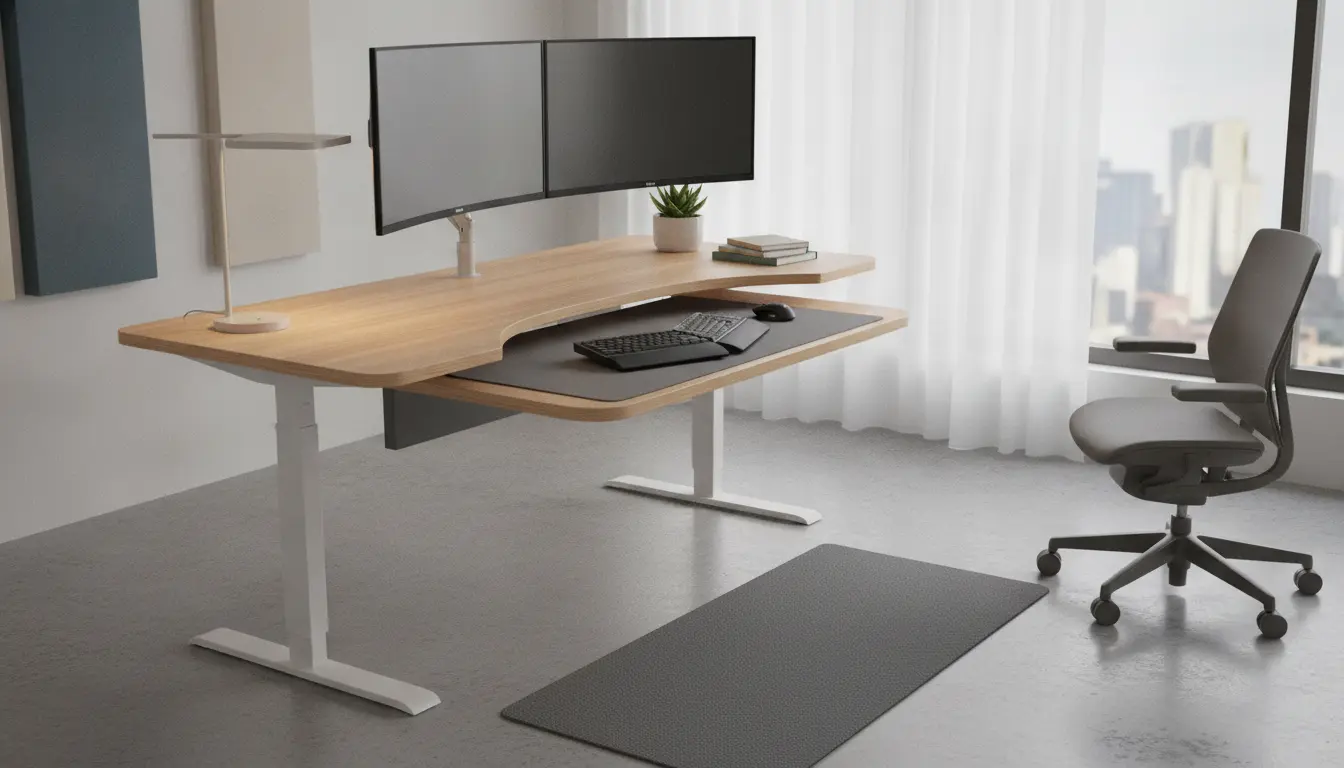
Home Office Ergonomics: Why It Matters
Home office ergonomics means arranging your workspace to reduce strain and improve comfort. Small changes can cut pain, reduce fatigue, and boost focus.
This guide gives clear, practical steps you can apply today. Use them whether you work at a dedicated office or a kitchen table.
Quick Assessment for Home Office Ergonomics

Start with a fast check to spot obvious issues. Take five minutes to scan posture, monitor height, and reach zones.
Look for common signs: slouching, raised shoulders, leaning forward, or frequent breaks for neck pain.
- Monitor too low or too high
- Keyboard and mouse too far away
- Feet not flat on floor
- Back unsupported
Chair and Seating: Core of Home Office Ergonomics
Your chair is the central element of good ergonomics. Adjust it before doing anything else.

Set seat height so feet rest flat on the floor and knees are about level with hips. Use lumbar support or a small cushion to maintain the lower back curve.
Chair Adjustment Checklist
- Seat height: feet flat, knees at 90–100 degrees
- Seat depth: 2–3 fingers between knee and seat edge
- Backrest: support lower back; recline 100–110 degrees for comfort
- Armrests: support elbows lightly with relaxed shoulders
Monitor and Screen Placement
Proper monitor height reduces neck strain. The top third of the screen should be at or slightly below eye level.
Place the monitor about an arm’s length away. If you use two monitors, angle them inward and set the primary screen directly in front of you.
Multiple Monitor Tips
- Primary monitor in center — secondary to the side
- Match monitor brightness and color temperature
- Use a riser or adjustable arm when needed
Keyboard, Mouse, and Input Devices

Arrange input devices to keep wrists neutral and shoulders relaxed. Your forearms should be roughly parallel to the floor.
Choose a keyboard and mouse that fit your hand. Consider ergonomic split keyboards if you type a lot.
- Keep mouse close to keyboard
- Use a wrist rest only to rest between typing, not while typing
- Alternate hands or use keyboard shortcuts to reduce repetitive motion
Lighting, Glare, and Visual Ergonomics
Good lighting reduces eye strain and improves posture. Avoid bright light directly behind or in front of the screen.
Position your monitor perpendicular to windows when possible. Use task lighting for paperwork and lower overall room brightness to match the screen.
Movement and Microbreaks
No setup fixes all strain — movement matters. Stand, stretch, or walk briefly every 30–60 minutes.
Microbreaks of 1–2 minutes can reset posture and circulation. Use reminders or a simple phone timer to prompt breaks.
- Stand for calls when possible
- Do gentle neck and shoulder rolls
- Walk 5–10 minutes each few hours
Ergonomic Accessories Worth Considering
Accessories can cost little but improve comfort significantly. Choose items based on the problems you notice in your assessment.
- Adjustable monitor arm or riser
- Footrest for shorter users
- External keyboard and mouse for laptop users
- Document holder to reduce neck turning
Research shows ergonomic improvements can lower musculoskeletal complaints by up to 50% in office workers when combined with training and movement.
Case Study: Simple Changes, Big Results
Maria is a graphic designer working from a small home desk. She reported neck pain and eye strain after six months of remote work.
After following a basic home office ergonomics checklist, she made three changes: raised her monitor on a riser, switched to an external keyboard, and scheduled 5-minute movement breaks every hour.
Within two weeks Maria noticed less neck pain and fewer headaches. Her focus improved and she completed projects faster. Small, consistent changes reduced her discomfort and boosted productivity.
Practical Quick Checklist for Today
- Adjust chair height and lumbar support
- Raise monitor top to eye level
- Keep keyboard and mouse within easy reach
- Set a timer for microbreaks every 30–60 minutes
- Improve lighting and reduce screen glare
Final Notes on Home Office Ergonomics
Start small and test changes for a week to see how your body responds. Ergonomics is individual — what works for one person may need slight tweaks for another.
Combine ergonomic setup, movement, and mindful work habits to create a comfortable, sustainable home workspace.