
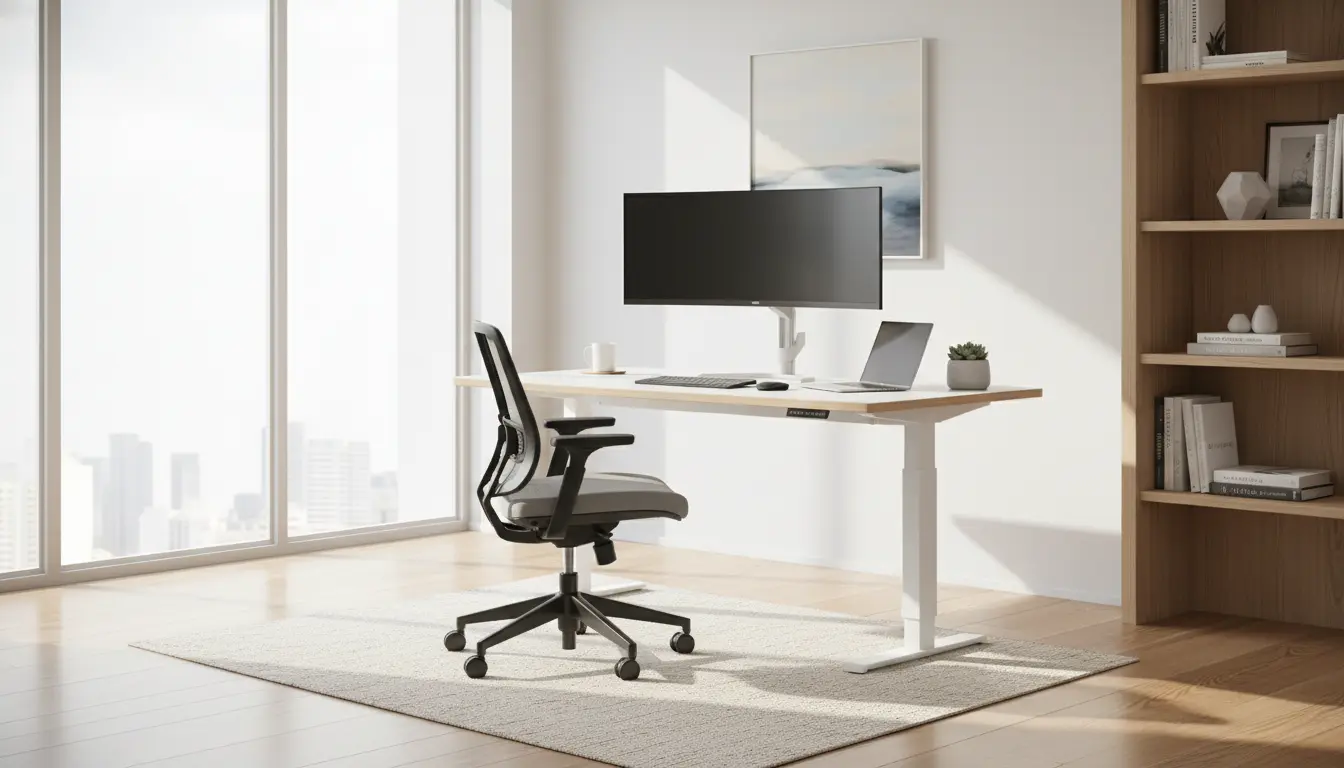
Home Office Ergonomics: Key Principles
Home office ergonomics focuses on arranging your workspace to reduce strain and improve comfort. Good ergonomics helps prevent neck, back, and wrist pain while improving focus for longer work sessions.
These instructions use simple adjustments you can make with common equipment. Most changes are inexpensive and quick to test.
Workspace Layout for Home Office Ergonomics
A clear layout is the foundation of ergonomic improvement. Start by measuring your desk height, monitor distance, and chair dimensions to compare with recommended ranges.
- Desk height: Typically 24–30 inches depending on your height and chair.
- Monitor distance: About an arm’s length, roughly 20–30 inches.
- Keyboard position: Low enough so elbows sit near a 90° angle.
Monitor Placement for Home Office Ergonomics
Place the top third of your monitor at or slightly below eye level. This reduces neck flexion and encourages a neutral head position.
If you use two monitors, position the primary monitor directly in front of you and the secondary to the side. Switch primary monitors if you use both equally to avoid repeated turning.
Ergonomic Chair and Seating for Home Office Ergonomics
An adjustable chair supports the lower back and allows feet to rest flat on the floor. Look for lumbar support, seat depth adjustment, and armrests that allow relaxed shoulders.
- Seat height: Feet flat, knees at about 90°.
- Lumbar support: Small curve supporting the lower spine.
- Armrests: Adjust so forearms are parallel to the desk.
Keyboard, Mouse, and Input Tools
Proper keyboard and mouse placement reduces strain on wrists and shoulders. Keep devices close to your body to avoid overreaching.
Consider ergonomic alternatives like split keyboards or vertical mice if you have persistent wrist pain.
Keyboard and Mouse Tips for Home Office Ergonomics
- Keep wrists neutral, not bent up or down.
- Use a light-touch typing style; reduce force on keys.
- Place mouse at the same height as the keyboard and near the body.
Lighting, Glare, and Visual Comfort
Lighting affects posture and eye strain. Use natural light when possible but avoid glare on screens. Position monitors perpendicular to windows if practical.
Adjust monitor brightness to match room light, and consider a desk lamp with adjustable color temperature for reading tasks.
Movement, Breaks, and Micro-Exercises
Sitting for long periods undermines ergonomic gains. Incorporate movement and brief exercises into your day to reduce stiffness and improve circulation.
- Follow a 20–8–2 rhythm: every 20 minutes look at a distant object for 20 seconds, every 8–20 minutes change posture, and every 2 hours take a 5–10 minute walk or stretch.
- Simple stretches: neck rolls, shoulder shrugs, seated hip openers, and wrist stretches.
- Use reminders or apps to prompt breaks.
Budget Options and Simple Upgrades
You do not need expensive equipment to improve ergonomics. Small, targeted purchases often have the biggest impact.
- Use books or a sturdy box to raise a monitor to the correct height.
- Add an inexpensive lumbar cushion to an existing chair.
- Try a laptop stand plus an external keyboard to achieve better screen height.
Adjusting monitor height by just 2–3 inches can reduce neck flexion significantly and cut the risk of chronic neck pain over time.
Case Study: Freelance Designer Improving Home Office Ergonomics
Maria, a freelance graphic designer, experienced shoulder and wrist pain after hours of work. She followed a step-by-step ergonomic checklist over two weeks.
Changes she made included raising her monitor by 3 inches, adding a lumbar pillow, switching to an external keyboard, and taking scheduled stretch breaks. After two weeks she reported less shoulder tension and fewer headaches, and she sustained longer focused work periods.
Checklist for Implementing Home Office Ergonomics
Use this quick checklist to test and adjust your workspace.
- Measure monitor height and distance; adjust so top third is at eye level.
- Set chair height so feet are flat and knees at 90°.
- Position keyboard and mouse close to the body and at elbow height.
- Reduce screen glare and optimize room lighting.
- Schedule movement breaks and add simple stretches to your routine.
Common Mistakes and How to Avoid Them
Many people make the same ergonomic mistakes without realizing it. Avoid these common issues for faster improvement.
- Working with laptop screen low without external input devices — use a stand and separate keyboard.
- Sitting without breaks — set timers to change posture frequently.
- Ignoring foot support — add a footrest or raise the floor if your feet dangle.
Final Tips for Sustainable Home Office Ergonomics
Start with a few changes and evaluate comfort over a week. Small tweaks are easier to maintain and often lead to measurable improvements.
Document adjustments and any reduction in pain or fatigue. Use that record to refine your setup or justify equipment upgrades when necessary.