
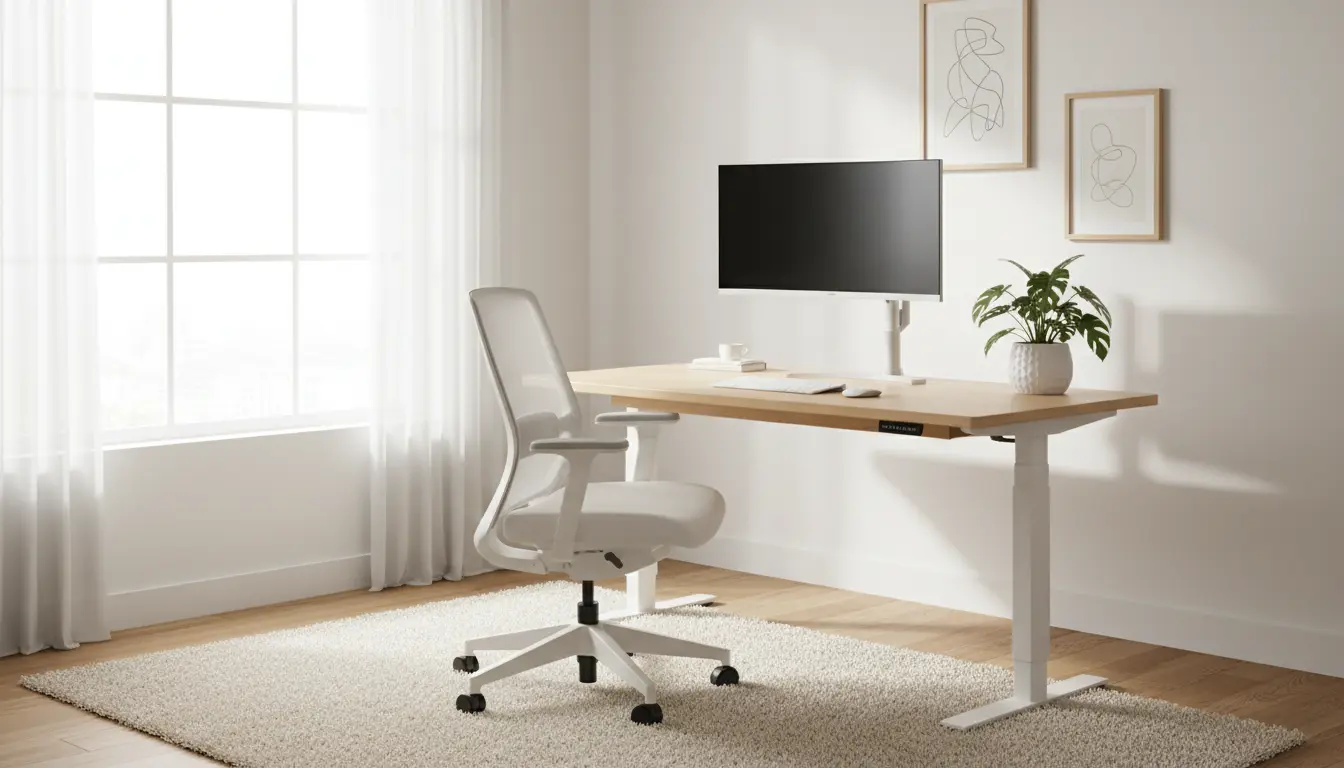
Understanding Home Office Ergonomics
Home office ergonomics means arranging your workspace so your body stays comfortable and safe during long work hours. Good ergonomics reduce pain, increase focus, and prevent long-term injuries.
This guide gives clear, actionable steps you can apply today, with measurements, checklists, and a short real-world case study.
Key Principles of Home Office Ergonomics
Start with three basic goals: maintain a neutral posture, minimize static positions, and support your body when possible. These principles apply whether you use a laptop, desktop, or tablet.
- Neutral posture: ears, shoulders, and hips aligned.
- Frequent movement: change position every 30 to 60 minutes.
- Support: use lumbar support and adjustable furniture.
Workspace Layout
Arrange primary tools—monitor, keyboard, mouse—in front of you to avoid twisting. Keep frequently used items within easy reach to limit repetitive stretching.
Use a dedicated surface for work. A clutter-free desktop encourages better posture and fewer awkward reaches.
Monitor and Screen Ergonomics
Proper monitor placement is one of the most effective home office ergonomics changes you can make. Eye and neck strain drop noticeably when screens are at the right height and distance.
Monitor Height and Distance
Set the top of the screen at or slightly below eye level so your eyes look slightly downward at the center of the screen. The ideal distance is about an arm’s length away (50-70 cm).
If you wear bifocals, lower the monitor slightly to keep your neck relaxed when reading.
Multiple Screens
Place your main screen directly in front of you. If you use a second monitor often, position it close and angled so you don’t twist your torso to view it.
Chair and Seating Adjustments
A good chair supports the natural curve of your lower back and allows both feet to rest flat on the floor. Small adjustments often make a big difference.
Chair Setup Checklist
- Seat height: knees at roughly 90 degrees, feet flat on the floor or on a footrest.
- Lumbar support: maintain the inward curve of the lower back.
- Seat depth: 2–3 fingers space between the back of the knees and seat edge.
- Armrests: support relaxed shoulders and elbows at 90 degrees.
Keyboard, Mouse, and Input Tools
Common wrist and forearm strain comes from keyboards and mice placed too high or too low. Keep your forearms parallel to the floor and your wrists neutral.
Practical Tips
- Position the keyboard directly in front of you with a slight negative tilt for a neutral wrist position.
- Use a mouse close to the keyboard; consider a trackpad or vertical mouse if you have wrist pain.
- Use a wrist rest only to support breaks, not to rest your wrists while typing.
Standing Desks and Movement
Alternating between sitting and standing reduces the strain of prolonged static posture. If you use a standing desk, aim for a 1:1 or 2:1 sit-to-stand ratio by the hour.
When standing, follow the same monitor and keyboard height guidelines and wear supportive shoes or use an anti-fatigue mat.
Movement Schedule Example
- Sit 25–30 minutes, stand 5–10 minutes.
- After two hours, take a 5-minute walk break every 30–60 minutes.
- Do brief neck and shoulder stretches at each break.
Lighting, Glare, and Visual Comfort
Eye strain often stems from poor lighting or glare. Position your screen perpendicular to windows and use blinds to control bright sunlight.
Use a soft task light if you need extra illumination, and set screen brightness and text size to comfortable levels.
Did You Know?
Quick Home Office Ergonomics Checklist
- Monitor top at eye level and an arm’s length away.
- Chair supports lower back; feet flat on floor.
- Keyboard and mouse at elbow height, wrists neutral.
- Alternate sitting and standing; take movement breaks.
- Control glare and use proper lighting.
Case Study: Quick Fixes That Reduced Neck Pain
Anna is a graphic designer who worked from her dining table. After three months of neck pain she made three simple changes: raised her laptop on a stand with an external keyboard, adjusted her chair height, and took breaks with a 2-minute stretch routine every 40 minutes.
Within two weeks Anna reported less neck stiffness and sharper focus. The cost was under $150 and the changes required only a few minutes each day.
When to Seek Professional Help
If persistent pain or numbness lasts more than a few weeks, see a healthcare professional. A physical therapist or ergonomist can provide tailored assessments and adjustments.
Consider a professional evaluation if pain affects sleep, daily tasks, or returns despite ergonomic improvements.
Final Steps to Improve Home Office Ergonomics
Start with small, measurable changes: adjust monitor height, set a movement timer, and optimize chair support. Track comfort changes over two weeks and iterate from there.
Good ergonomics is an ongoing process. Regular checks and small improvements maintain comfort and productivity over time.