
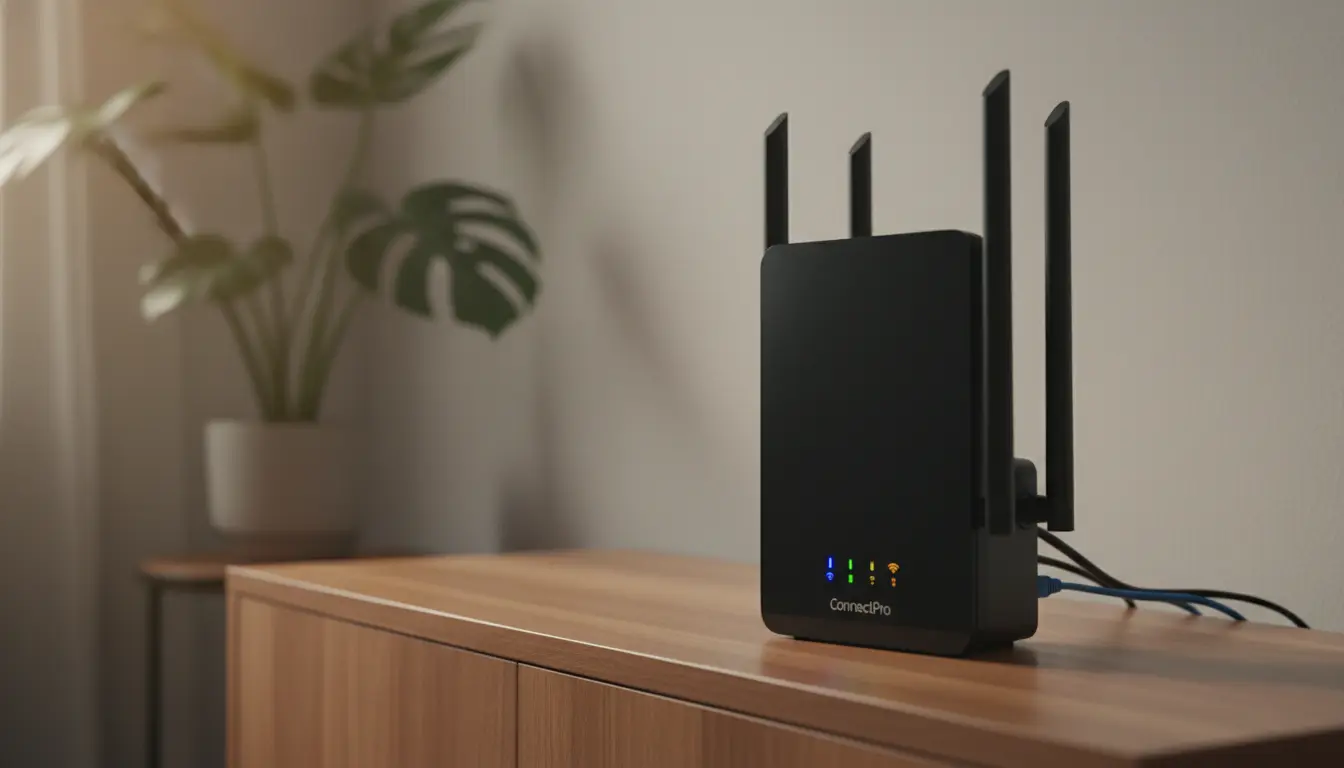
Weak or inconsistent Wi-Fi can disrupt work, streaming, and smart home devices. This guide explains practical steps to improve Wi-Fi signal at home with clear, actionable advice.
Quick checklist to improve Wi-Fi signal at home
Start with a simple checklist to identify and fix common issues. Follow the list below before buying new hardware.
- Restart your router and modem.
- Check your internet plan and actual speed.
- Move the router to a more central location.
- Change Wi-Fi channel and band settings.
- Update firmware and secure your network.
Measure your current Wi-Fi performance
Before changing settings, measure performance to know if changes help. Use speed test apps on a laptop or phone in several rooms.
Record download and upload speeds as well as latency in the room where you need better coverage. Repeat at different times of day to check for peak-hour slowdowns.
Router placement to improve Wi-Fi signal
Router location often has the biggest effect on coverage. Place the router in a central, elevated spot away from walls and metal objects.
Avoid placing routers inside cabinets, near microwaves, cordless phones, or large appliances. These cause interference and reduce range.
Best practices for router placement
- Center the router in your living space rather than the basement or corner.
- Elevate it on a shelf or high piece of furniture for fewer obstructions.
- Keep at least 1–2 feet of clear space around the router for airflow and signal.
Change Wi-Fi channels and bands
Neighbors using the same channel can cause interference on 2.4 GHz networks. Use channel scanning tools to find a less crowded channel.
Switching to 5 GHz can improve speeds and reduce congestion, though its range is shorter. Use 2.4 GHz for coverage and 5 GHz for devices close to the router.
How to pick channels
- Use a Wi-Fi analyzer app to see channel use in your area.
- On 2.4 GHz prefer channels 1, 6, or 11 to avoid overlap.
- Choose an unused 5 GHz channel for less interference when available.
Common household devices like microwaves and older cordless phones can interfere with 2.4 GHz Wi-Fi signals and cause temporary drops in performance.
Update firmware and secure your network
Router firmware updates include performance improvements and security fixes. Log into your router’s admin page and check for updates regularly.
Also secure your Wi-Fi with a strong password to prevent unauthorized users from consuming bandwidth. Use WPA2 or WPA3 encryption if supported.
Use wired connections where possible
For devices that need consistent high speed, use Ethernet. A wired connection is faster and more reliable than Wi-Fi.
If running cable is difficult, consider powerline adapters that use home electrical wiring for network backhaul. Performance varies with wiring quality.
Upgrade hardware: extenders, mesh, or a new router
If placement and settings do not solve issues, consider hardware upgrades. Choose based on home size and needs.
- Wi-Fi extenders repeat the signal but can halve throughput on the extended link.
- Mesh systems provide multiple nodes with unified coverage and better performance over extenders.
- Upgrading to a modern router (Wi-Fi 6) improves capacity for many devices and future-proofing.
When to choose mesh over extenders
Pick mesh if you have a multi-room home with dead zones and many devices. Extenders can work for a single problem room but may not scale well.
Optimize specific device settings
Some devices allow you to prefer 5 GHz networks or tune power settings. Check device Wi-Fi settings to ensure optimal band selection.
Enable Quality of Service (QoS) on your router to prioritize video calls or streaming when the network is busy. This can improve perceived performance during heavy use.
Small real-world case study
Household: Family of four in a two-story home experienced buffering in bedrooms. Measured download speed in upstairs bedroom was 12 Mbps while the plan offered 150 Mbps.
Action taken: Router was moved from a basement cabinet to a central living room shelf, firmware updated, and 5 GHz band enabled for upstairs devices. A mesh node was added for the upstairs hall.
Result: Bedroom speed rose to 85–110 Mbps and streaming issues stopped. The family regained reliable video calls and gaming performance across devices.
Testing and ongoing maintenance
After changes, retest speeds in problem areas and at peak times. Keep a short log of changes and results to isolate what worked.
Schedule a firmware check every few months and restart the router monthly to maintain stable performance. Replace aging equipment if problems recur.
Summary: steps to improve Wi-Fi signal at home
- Measure current performance in multiple rooms.
- Place the router centrally and elevated.
- Change channels and use 5 GHz for nearby devices.
- Update firmware, secure the network, and use wired connections when possible.
- Upgrade to mesh or a modern router if problems persist.
Following these practical steps will typically resolve most home Wi-Fi problems without unnecessary expense. Start with placement and measurements, then move to settings and hardware as needed.