
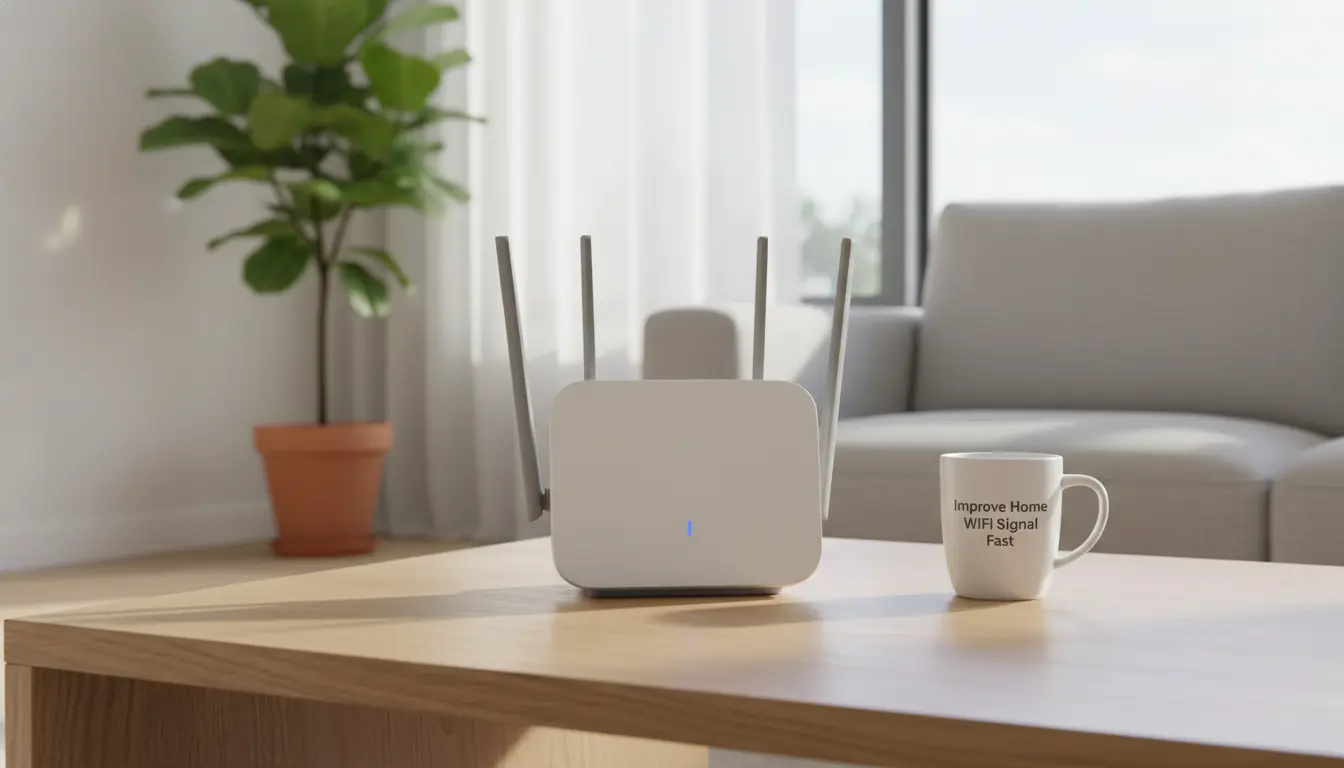
Why improving your home WiFi signal matters
Poor WiFi signal affects video calls, streaming, and smart devices. A few practical adjustments can reduce dropouts and increase usable speed without buying expensive equipment.
This guide gives step-by-step actions you can try today to improve home WiFi signal and coverage.
Quick checklist to improve home WiFi signal
- Move the router to a central, elevated spot.
- Reduce physical obstructions and interference.
- Update router firmware and use modern WiFi standards.
- Choose the best channel and frequency band.
- Consider inexpensive hardware: extenders, mesh nodes, or a better antenna.
Steps to improve home WiFi signal
Place the router for better coverage
Router location is the most common cause of poor signal. Put the router in a central part of the home and off the floor. Walls, large furniture, and appliances like refrigerators block signals.
Try these placement tips:
- Elevate the router on a shelf or high cabinet.
- Avoid corners, basements, and closets.
- Keep the router away from microwaves, cordless phones, and baby monitors.
Choose the right band and channel
Modern routers offer 2.4 GHz and 5 GHz bands. 2.4 GHz covers farther but is slower and more crowded. 5 GHz is faster but has shorter range.
To improve home WiFi signal, use 5 GHz for devices near the router and 2.4 GHz for distant devices. Use a WiFi analyzer app to scan for the least crowded channels and switch the router channel accordingly.
Update firmware and router settings
Router manufacturers release firmware updates that improve stability and performance. Check the router admin page or the manufacturer’s app for updates.
Other useful settings:
- Enable WPA3 or WPA2 encryption for security and stability.
- Turn on QoS (Quality of Service) to prioritize video calls or gaming.
- Disable legacy modes (802.11b) if not needed, to reduce interference.
Reduce interference and manage devices
Interference from neighbors, Bluetooth, and other electronics can lower performance. Use the 5 GHz band for interference-sensitive tasks.
Also consider these tips:
- Limit background downloads during video calls.
- Disconnect or move unused smart devices away from the router.
- Turn off guest networks when not required.
Use targeted hardware upgrades
If placement and settings don’t solve the problem, targeted hardware helps. Options include range extenders, powerline adapters, and mesh WiFi systems.
- Range extenders: cheap and easy, but may cut throughput in half for extended clients.
- Powerline adapters: use your home wiring to carry the network—good where WiFi can’t reach.
- Mesh WiFi: best for full-home coverage with consistent speeds and easy management.
Small real-world case study
Case: Two-bedroom apartment with weak signal in the bedroom. Initial speed in bedroom: 5–10 Mbps, router in living room.
Steps taken:
- Moved router from living-room corner to central high shelf—bedroom speed rose to 18 Mbps.
- Changed 2.4 GHz channel to a less crowded option—reduced dropouts.
- Added an inexpensive mesh satellite for $99—bedroom speed stabilized at 80 Mbps.
Result: Video calls and streaming became consistent. Total cost under $120 and two hours of setup time.
Troubleshooting: If speeds remain slow
Check the following in order to further diagnose slow WiFi:
- Run a wired speed test to confirm ISP speed. If wired is slow, contact your ISP.
- Verify router CPU and age. Routers older than five years may not handle multiple modern devices.
- Test with a single device close to the router to rule out device WiFi issues.
Best practices to maintain a strong signal
- Reboot the router monthly or set scheduled reboots.
- Keep firmware and connected device drivers up to date.
- Monitor network usage and remove rogue or unused devices.
- Map weak spots and plan placement of extenders or mesh nodes accordingly.
Quick decision guide: When to upgrade hardware
Use this short guide to decide your next step:
- If a single room is poor: try repositioning or a range extender.
- If multiple rooms or floors are weak: invest in a mesh WiFi system.
- If wired speed is slow: contact ISP or upgrade the internet plan.
Summary: Improve home WiFi signal in practical steps
Start with simple moves: relocate the router, change channels, update firmware, and manage interference. If problems persist, add targeted hardware like extenders or mesh systems.
Small changes often yield large improvements, and a methodical approach saves money and time.