
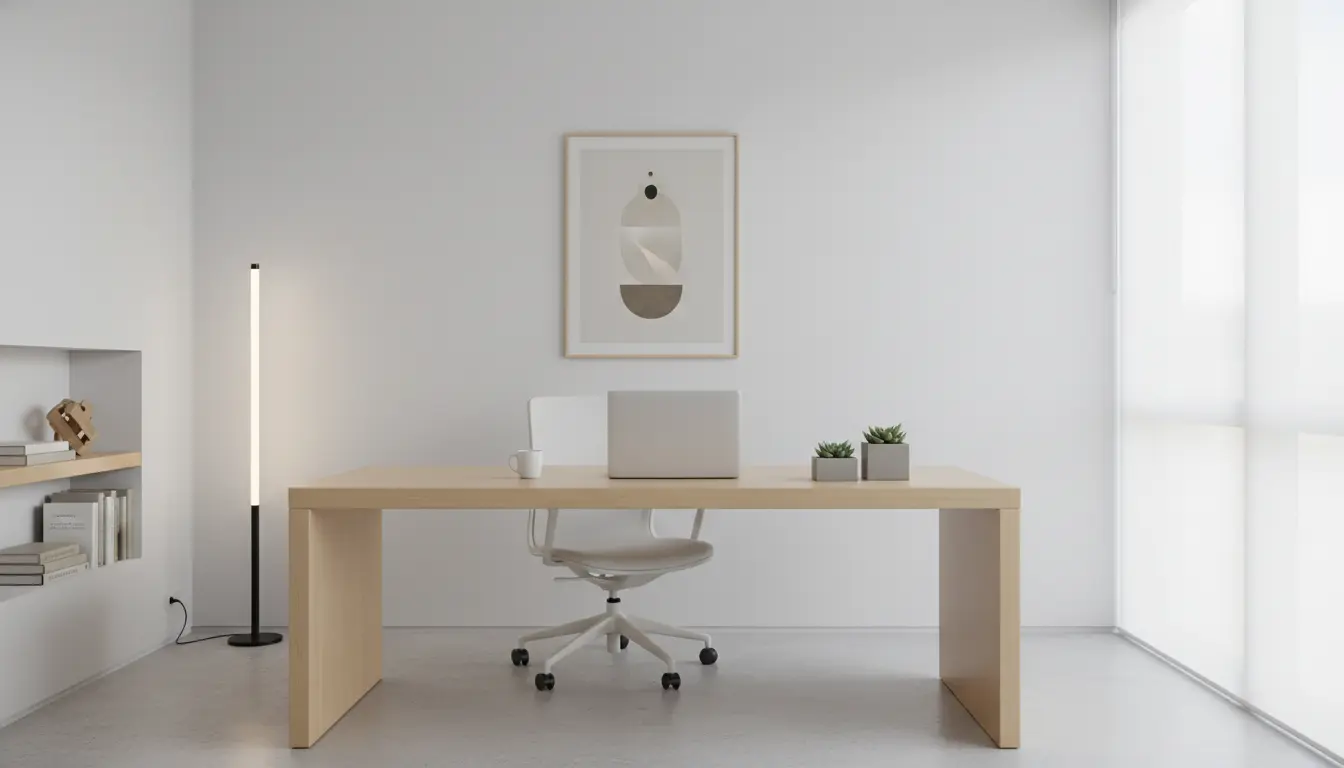
Home Office Ergonomics: Basic Principles
Home office ergonomics means arranging your workspace so your body can work with minimal strain. A good ergonomic setup reduces pain, improves focus, and lowers the risk of long term injuries.
These principles focus on posture, reach zones, neutral alignment, and the right equipment. Apply small changes gradually to see steady improvements.
Home Office Ergonomics Setup Checklist
Use this checklist to evaluate and adjust your workspace. Each item targets a common cause of discomfort.
- Chair: adjustable height, lumbar support, and a seat that supports your thighs.
- Desk: height that allows forearms to rest parallel to the floor.
- Monitor: top of screen at or just below eye level, about an arm length away.
- Keyboard and mouse: positioned to keep wrists straight and elbows near 90 degrees.
- Lighting: even, glare-free light with task lighting for documents.
- Breaks: short microbreaks every 20–30 minutes and a longer break every 60–90 minutes.
Choosing the Right Chair
Pick a chair with adjustable seat height and lumbar support. The seat pan should allow two to three fingers between the edge and the back of your knees.
Use armrests only if they allow your shoulders to relax. If your chair lacks support, a small lumbar pillow can help.
Desk Height and Alternatives
Your desk should let your forearms be parallel to the floor when typing. Standard desk heights often work, but adjustability is best.
Consider a sit-stand desk or a converter to alternate positions. Standing too long causes fatigue, so alternate every 30–60 minutes.
Monitor, Keyboard, and Mouse Placement
Correct device placement prevents neck, shoulder, and wrist strain. Start by centering the monitor with the longest task you perform.
- Monitor distance: about 20–30 inches from your eyes, or an arm length.
- Monitor height: top of screen at eye level so you look slightly down at the screen.
- Keyboard: directly in front of you with a slight negative tilt if possible.
- Mouse: close to the keyboard to reduce reaching.
Accessories That Improve Comfort
Small tools can make a big difference. Wrist rests, document holders, and footrests often correct common issues.
Use a document holder next to the monitor to avoid frequent head turning. A footrest helps if your feet do not rest flat on the floor.
Posture and Movement Tips for Home Office Ergonomics
Neutral posture is the goal: ears over shoulders, shoulders over hips, and hips over knees. Avoid slouching forward toward the screen.
Movement matters as much as posture. Incorporate microbreaks with simple stretches or a short walk to reoxygenate muscles and maintain alertness.
Simple Microbreak Routine
- Every 20 minutes: look away from the screen for 20 seconds, focusing 20 feet away.
- Every 30 minutes: stand and stretch for 1 minute, roll shoulders, or walk to refill water.
- Hourly: perform a 3–5 minute mobility sequence for neck, hips, and hamstrings.
Lighting, Screen Glare, and Visual Comfort
Avoid strong backlight and direct glare on the monitor. Position screens perpendicular to windows if possible.
Use adjustable task lighting for reading and lower overall screen brightness to reduce eye strain. Consider blue light filters for evening work.
Case Study: Small Changes, Big Results
Marie, a marketing specialist, had neck pain from a laptop and couch setup. She followed a simple plan: moved to a dedicated desk, raised her laptop onto a riser, added a separate keyboard and mouse, and set a timer for breaks.
Within two weeks she reported less neck pain and fewer headaches. Productivity improved because she felt less fatigued. The total cost was under $150 for a riser and external keyboard.
Practical Examples and Setup Options
Below are example setups based on budget and needs. Choose the one that fits your work patterns.
- Basic budget: sturdy chair, laptop riser, external keyboard and mouse, set timers for breaks.
- Balanced: adjustable office chair, sit-stand desk converter, monitor at eye level, task lamp.
- Premium: height-adjustable desk, ergonomic chair with lumbar adjustment, dual monitors, footrest.
Quick Troubleshooting for Common Issues
If you feel neck pain, check monitor height and forward head position. If wrists hurt, check keyboard angle and wrist support.
Back pain often signals poor lumbar support or prolonged sitting; try a lumbar cushion or alternate standing more often.
Final Checklist for Home Office Ergonomics
- Adjust chair height so feet rest flat and thighs are parallel to the floor.
- Set monitor top at eye level and about an arm’s length away.
- Keep keyboard and mouse close to maintain neutral wrists.
- Use lighting that minimizes glare and supports visual comfort.
- Schedule regular microbreaks and move frequently during the day.
Start with one or two changes this week. Small adjustments produce noticeable benefits in comfort and focus without major expense.