
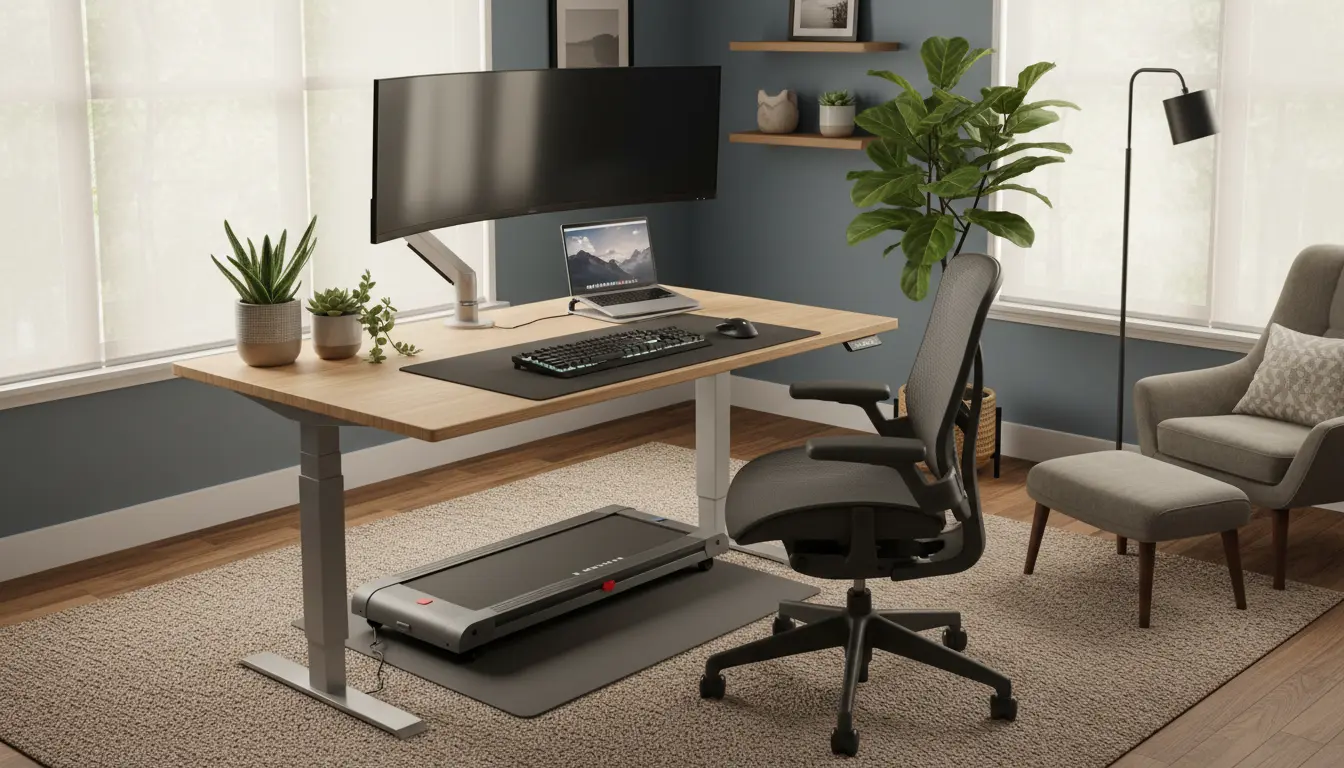
Why Home Office Ergonomics Matter
Most people who work from home spend long hours at a desk without thinking about how their body is positioned. Poor setup increases the risk of neck pain, back pain, and repetitive strain injuries.
Good home office ergonomics reduces discomfort and helps you maintain consistent productivity across the day. Small adjustments can deliver big benefits.
Health and productivity benefits of Home Office Ergonomics
Proper ergonomics lowers the chance of musculoskeletal problems and decreases fatigue. It also reduces distractions from discomfort, which improves focus.
Employers and remote workers who invest in ergonomic setups often see fewer sick days and higher work quality.
Home Office Ergonomics: Basic Principles
Ergonomics is about fitting the workspace to the person, not forcing the person to adapt to the workspace. Focus on neutral body positions and support where the body needs it most.
Key principles include neutral spine, relaxed shoulders, and wrists in a straight position when typing. Alignment and frequent movement are both essential.
Checklist for a basic ergonomic setup
- Chair that supports the natural curve of your lower back.
- Desk height that allows elbows to rest at 90 degrees.
- Monitor at eye level to keep neck neutral.
- Keyboard and mouse positioned close to the body to avoid reaching.
- Good lighting to reduce eye strain and awkward postures.
How to Set Up Chair and Desk for Home Office Ergonomics
Your chair and desk are the foundation of an ergonomic home office. Set them so your feet are flat on the floor and your knees are about level with your hips.
If your chair is too low, raise it and use a footrest if your feet do not reach the floor. If your desk is too high, adjust the chair and use a keyboard tray or lower the desk if possible.
Chair adjustments
- Seat height: knees at roughly 90 degrees, feet flat on the floor.
- Lumbar support: small curve in the lower back area to support the natural spine curve.
- Armrests: support elbows lightly without pushing shoulders up.
Monitor, Keyboard, and Mouse: Details for Home Office Ergonomics
Monitor placement is often overlooked. The top of the screen should be at or slightly below eye height and about an arm’s length away.
Keyboards and mice should sit close to your body and allow a straight wrist posture. Consider split or angled keyboards if you have wrist discomfort.
Quick setup steps
- Raise the monitor using a stand or stack of books to reach eye level.
- Place the keyboard so your forearms are parallel to the floor.
- Keep the mouse next to the keyboard to avoid reaching.
Lighting, Screen Settings, and Other Home Office Ergonomics Tips
Poor lighting causes you to lean forward or strain your eyes. Position task lighting to reduce glare and keep the screen contrast comfortable.
Use software or built-in settings to adjust screen brightness and color temperature for the time of day.
Additional practical tips
- Use a document holder to keep reference materials near the monitor.
- Switch between sitting and standing if you have a sit-stand desk.
- Keep frequently used items within easy reach to avoid repetitive twisting or reaching.
Movement and Breaks to Complement Home Office Ergonomics
Even the best ergonomic setup needs regular movement. Schedule short active breaks to reduce stiffness and reset posture.
Simple activities such as standing, stretching, or a 3–5 minute walk every hour have measurable benefits for comfort and focus.
Microbreak routine
- Every 30 minutes: look away from the screen for 20 seconds to rest your eyes.
- Every 60 minutes: stand and stretch for 2–3 minutes.
- Twice daily: perform 5–10 minutes of mobility work for hips, shoulders, and thoracic spine.
Real-World Example: Simple Changes, Big Impact
Case study: A graphic designer working from home experienced daily neck pain and afternoon fatigue. Her desk was too low and the laptop screen was below eye level.
Solutions implemented: a laptop stand to raise the screen, external keyboard and mouse to restore neutral wrist posture, and a lumbar cushion for her chair. She added 5-minute stretch breaks every hour.
Result: Within two weeks she reported a 70% reduction in neck pain and steadier energy levels through the afternoon. Her work output increased because she was less distracted by discomfort.
Common Ergonomic Mistakes and How to Fix Them
Avoid these frequent errors: slouching, using a laptop on the lap for long periods, and keeping screens too low. Each creates strain over time.
Fixes are often inexpensive. A monitor stand, small footrest, or a better mouse can make a significant difference.
Low-cost upgrade ideas
- Use a pillow or rolled towel for lumbar support if you lack an ergonomic chair.
- Repurpose a bookshelf or sturdy box as a temporary monitor riser.
- Try an inexpensive external keyboard to improve wrist alignment.
Final Steps for Better Home Office Ergonomics
Start with small, measurable changes and track your comfort. Adjust one element at a time to identify what helps most.
If pain persists, consult an occupational therapist or healthcare professional for personalized advice. Ergonomics is both preventive and corrective when applied consistently.