
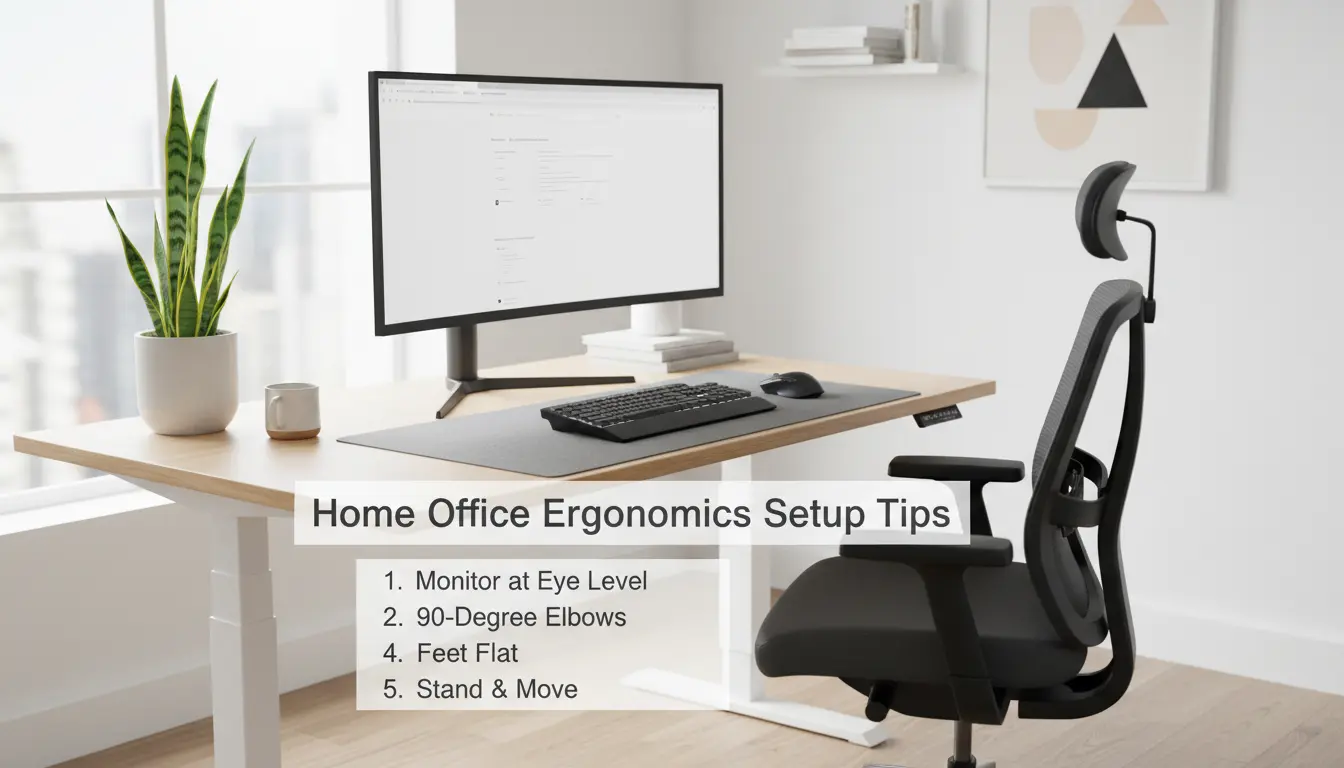
Why Home Office Ergonomics Matters
Proper home office ergonomics reduce discomfort and prevent long-term musculoskeletal issues. Small adjustments to posture and equipment often yield big improvements in comfort and focus.
This guide gives practical, actionable steps you can apply with common furniture and affordable accessories. Use the checklist and examples to set up a safer workspace quickly.
Home Office Ergonomics Setup Checklist

Start with this prioritized checklist to assess your workspace. Tackle items in order for the fastest benefit.
- Chair support and seat height
- Desk height and keyboard position
- Monitor height and viewing distance
- Lighting and glare reduction
- Foot and wrist support
- Microbreaks and movement plan
Chair and Seating: Core of Home Office Ergonomics
Your chair is the foundation of good ergonomics. Aim for lumbar support and adjustable height to keep knees at roughly a 90 degree angle.
Key adjustments to make:
- Seat height so feet rest flat on the floor or a footrest
- Seat pan depth supports the thighs without pressure behind the knees
- Backrest provides lower back support and encourages upright posture
Examples of affordable fixes
- Use a rolled towel for lumbar support if the chair lacks it
- Add a cushion to adjust seat height when needed
Desk, Keyboard, and Mouse: Reducing Strain
Desk and input placement determine wrist and shoulder posture. Proper placement keeps wrists neutral and shoulders relaxed.
Practical positioning tips:
- Keyboard at elbow height or slightly lower
- Mouse close to the keyboard to avoid reaching
- Keep forearms parallel to the floor when typing
When a desk is too high or too low
If the desk is too high, lower the chair and use a footrest. If the desk is too low, raise the keyboard with a tray or place blocks under the desk legs for a long-term solution.
Monitor Placement for Clear Viewing

Monitor height and distance influence neck and eye strain. The top of the screen should be at or slightly below eye level.
Follow these steps for monitor placement:
- Position the monitor about an arm’s length away
- Top of screen at or just below eye level to keep the neck neutral
- Use a laptop stand or external monitor to correct height if needed
Multiple monitor setups
For two monitors used equally, center them together and place the seam directly in front of you. If one is primary, center that monitor and angle the secondary one to the side.
Lighting, Glare, and Visual Comfort
Good lighting reduces eye strain and improves comfort. Aim for diffuse natural light and limit glare on screens.
Quick lighting tips:
- Place monitors perpendicular to windows to reduce glare
- Use adjustable task lighting for paperwork
- Adjust screen brightness to match ambient light
Short, frequent breaks can be more effective than longer, less frequent breaks. A 5-minute break every 30 minutes reduces fatigue and boosts concentration.
Movement and Microbreaks
Sitting still is a major ergonomic risk. Plan scheduled movement to interrupt static postures and encourage circulation.
- Set a timer to stand or walk every 30 minutes
- Do simple stretches for neck, shoulders, and wrists
- Consider a sit stand routine: alternate sitting and standing every 30 to 60 minutes
Wrist and Foot Support
Wrist and foot positioning influence comfort for long typing sessions. Neutral wrists and supported feet reduce pressure on nerves and joints.
- Use a wrist rest to keep wrists straight when pausing between typing
- Keep a footrest if feet do not rest flat on the floor
- Avoid resting wrists on hard edges of desks while typing
Small Real-World Case Study
Case: Sarah, a freelance graphic designer, had daily neck pain after switching to full-time remote work. Her monitor was on a low shelf and her chair lacked lumbar support.
Intervention: She raised her monitor using a laptop stand, added a lumbar cushion, and set a 30-minute movement timer. Within two weeks Sarah reported reduced neck pain and higher focus during afternoon tasks.
Takeaway: Simple, low-cost changes produced measurable improvements in comfort and productivity.
Checklist Recap and Quick Actions to Try Today
Start with three quick actions you can do in under 15 minutes:
- Raise your monitor so the top is at eye level
- Adjust chair height so feet are flat or use a footrest
- Set a timer to stand and stretch every 30 minutes
These small adjustments can reduce discomfort immediately and prevent chronic issues over time.
Conclusion: Make Ergonomics a Routine
Home office ergonomics is an ongoing process, not a one-time task. Reassess your setup when you change furniture, equipment, or the nature of your work.
Use the checklist and examples in this guide to create a comfortable, productive workspace that supports long-term health.