
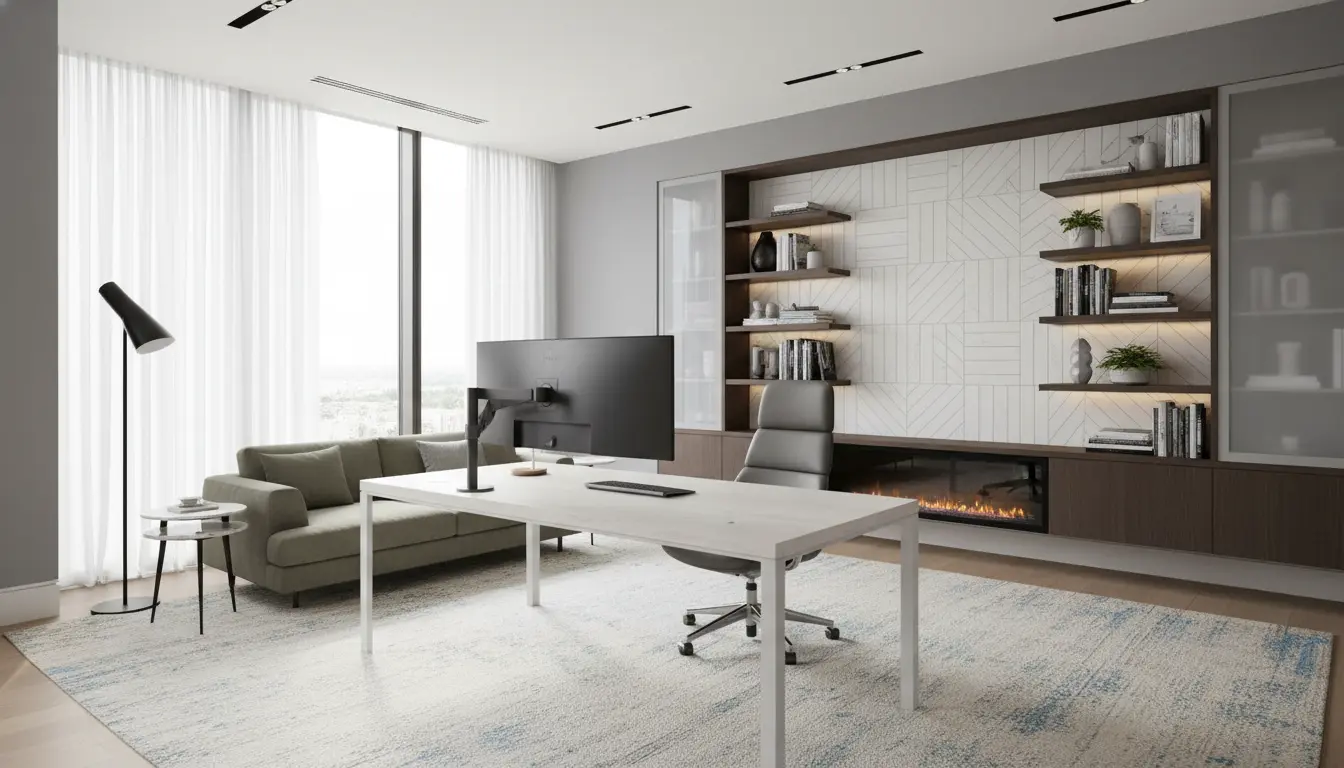
Why home office ergonomics matters
Good home office ergonomics reduces pain, fatigue, and the risk of repetitive strain injuries. Small adjustments to your desk, chair, and equipment can have a big effect on comfort and focus.
This guide explains practical steps to set up a comfortable workspace you can use every day.
Basic principles of home office ergonomics

Ergonomics is about aligning your body with your environment. Key principles include neutral posture, adequate support, and regular movement.
Follow these ideas to design a workstation that fits you rather than forcing your body to adapt.
Neutral posture
Sit with your spine in a natural S-curve, shoulders relaxed, and feet supported. Avoid slouching or leaning forward for extended periods.
Support and adjustability
Choose furniture and accessories you can adjust. Height-adjustable chairs and monitor stands let you fine-tune your setup.
Regular breaks and movement
Even with the best setup, staying in one position is harmful. Stand, stretch, or walk for a few minutes every hour.
How to set up your desk for home office ergonomics
Start with desk height and surface space. Your desk should let you keep wrists straight while typing and elbows close to 90 degrees.

Follow these steps for a reliable baseline setup.
- Set chair height so feet rest flat on the floor or on a footrest.
- Adjust seat depth so there is a 2–4 inch gap between the back of your knees and the seat edge.
- Position the keyboard and mouse directly in front of you at elbow height.
Chair and posture tips for home office ergonomics
Invest in a chair with lumbar support. If a new chair isn’t an option, use a small cushion or rolled towel to support the lower back.
Key chair adjustments include seat height, backrest angle, and lumbar support placement.
Adjusting chair height
Your hips should be slightly higher than your knees. This angle reduces pressure on the lower back and keeps circulation healthy.
Backrest and armrests
Set the backrest to support the natural curve of your spine. If armrests interfere with keyboard placement, lower or remove them while typing.
Monitor and screen setup for home office ergonomics
Screen height and distance matter for neck comfort. Place the top third of the monitor at or slightly below eye level.
Keep the monitor about an arm’s length away to reduce eye strain. Use a riser, stack of books, or a monitor arm to achieve the right height.
Multiple monitors
When using two monitors equally, position them close together and at the same height. If one is primary, center that monitor in front of you and place the second to the side.
Keyboard, mouse, and accessories
Choose input devices that let you keep wrists straight and hands relaxed. A compact keyboard or negative-tilt tray can help maintain a neutral wrist position.
- Place the mouse close to the keyboard to avoid overreaching.
- Consider an ergonomic mouse or vertical mouse if wrist pain is a concern.
- Use a document holder next to the monitor if you reference printed materials frequently.
Lighting, glare, and screen settings
Good lighting reduces eye strain and improves posture. Avoid bright lights directly behind or in front of the screen to prevent glare.
Position your desk perpendicular to windows when possible. Adjust screen brightness and contrast to match room light.
Simple routines to maintain ergonomics
Consistency keeps your setup effective. Follow a compact routine each morning and during the day to prevent slips back to poor habits.
- Quick morning check: chair height, monitor angle, keyboard position.
- Hourly micro-breaks: stand for 1–2 minutes, stretch neck and shoulders.
- Midday reset: walk 10 minutes, re-evaluate posture and equipment position.
A simple weekly checklist for home office ergonomics
Use this checklist to keep your workspace tuned and comfortable.
- Clean and clear desk surface for unobstructed movement.
- Check chair adjustments and test lumbar support.
- Confirm monitor height and distance are correct.
- Inspect keyboard and mouse positions for reach and alignment.
- Review lighting to reduce glare or shadows.
Taking a 5-minute break every 30 minutes can reduce discomfort and improve focus. Short, frequent movement beats one long break for reducing strain.
Real-world example: Anna’s desk overhaul
Anna worked from home and had neck pain after long video calls. She followed these ergonomic steps and saw quick improvement.
- Raised her laptop on a stand and added an external keyboard and mouse.
- Adjusted her chair and added a lumbar cushion for lower-back support.
- Set a timer to take standing breaks every 45 minutes and did short stretches.
Within two weeks Anna reported less neck stiffness and better concentration during afternoon work sessions.
Troubleshooting common problems
If pain persists despite adjustments, try swapping one element at a time. For example, test a different chair cushion, then change mouse type, then change monitor height.
Consult a physical therapist if you have chronic or worsening pain. Professional assessment can identify underlying causes and targeted exercises.
Quick checklist to start now
- Set chair height so feet are flat and knees at 90 degrees.
- Position monitor top at eye level, arm’s length away.
- Keep keyboard and mouse close with wrists straight.
- Schedule hourly micro-breaks to stand and move.
Applying these home office ergonomics steps will reduce discomfort and increase sustainable productivity. Small, consistent changes matter more than a perfect setup.