
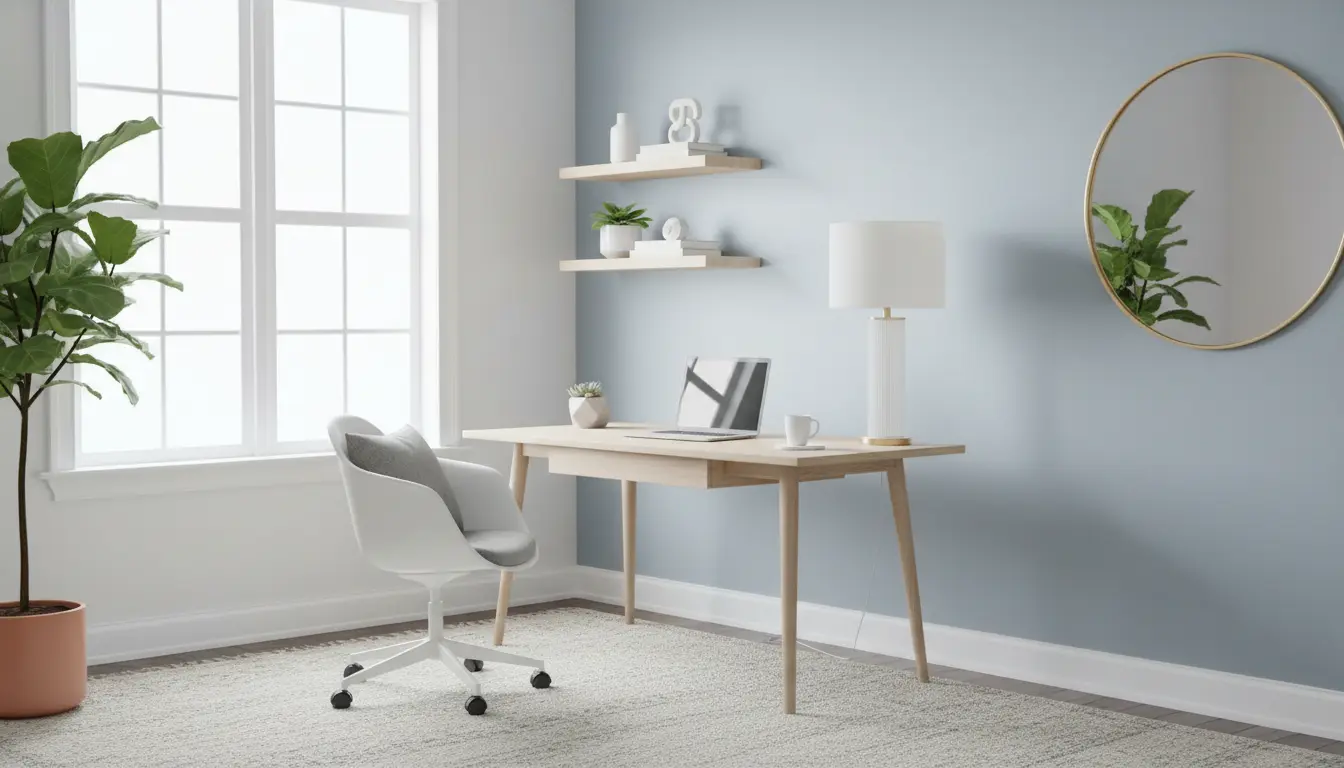
Working from home is common, but many people ignore ergonomics. Small changes to your chair, desk, and monitor setup can reduce pain and increase focus.
Why Home Office Ergonomics Matter
Home office ergonomics affects comfort, health, and performance. Poor setups lead to neck pain, wrist strain, and lower productivity.

Addressing ergonomic issues prevents long-term injury and helps you work longer with less fatigue. This guide gives clear, actionable steps you can apply today.
Health and productivity impacts of Home Office Ergonomics
Discomfort causes distractions and frequent breaks, reducing overall output. Proper ergonomics support neutral posture and efficient movement.
- Less neck and back pain from correct monitor height.
- Fewer wrist issues with a proper keyboard and mouse position.
- Improved concentration when the workspace is organized and comfortable.
Key Elements of a Good Home Office Ergonomics Setup
Focus on a few core elements: chair, desk, monitor, input devices, lighting, and movement. Each element is simple to adjust and often inexpensive.
Chair and Desk: Basic rules for Home Office Ergonomics

Your chair and desk set the foundation. Aim for neutral joints and stable support. Adjust both so your body rests naturally.
- Seat height: Feet flat on the floor or on a footrest; knees at about 90 degrees.
- Seat depth: Two to three fingers clearance behind knees to the seat edge.
- Back support: Lower back support or small lumbar cushion to maintain curve.
- Desk height: Elbows near 90 degrees when typing; forearms roughly parallel to the floor.
Monitor and Screen Position for Home Office Ergonomics
Place the top of the monitor at or just below eye level. The screen should be about an arm’s length away to reduce eye strain.
- Single monitor: center it directly in front of you.
- Dual monitors: place the primary monitor directly ahead and the secondary to the side you use less.
- Use a laptop stand or external monitor for better height alignment.
Keyboard, Mouse, and Accessories
Keep input devices close to avoid reaching. Use a low-profile keyboard or a wrist rest only when wrists are neutral.
- Keyboard: Centered, flat or slightly tilted away from you.
- Mouse: Close to the keyboard and at the same height.
- Phone/Tablet: Use stands to avoid neck bending.
Movement and Microbreaks in Home Office Ergonomics

Even with a perfect setup, staying still for long periods is harmful. Plan movement to refresh muscles and eyes.
- Follow a 20-8-2 rule: every 30 minutes, 20 minutes sitting, 8 minutes standing or moving, 2 minutes stretching (adapt as needed).
- Set a timer to stand and stretch every 30–60 minutes.
- Do simple stretches: neck rolls, shoulder shrugs, wrist flexes, and calf raises.
Lighting and Visual Ergonomics for Home Office Ergonomics
Good lighting reduces eye strain and glare. Combine natural light with adjustable task lighting for best results.
- Position monitors perpendicular to windows to avoid glare.
- Use a desk lamp with adjustable brightness and direction.
- Adjust screen brightness to match ambient light.
Proper monitor height can reduce neck strain by up to 30 percent. Small height changes often yield quick comfort gains.
Simple Checklist: Quick Home Office Ergonomics Fixes
- Raise your monitor so the top is at eye level.
- Sit with feet flat and knees at 90 degrees.
- Keep keyboard and mouse close to avoid reaching.
- Take a short standing or stretching break every 30–60 minutes.
- Use a lamp to reduce screen glare and match room light.
Case Study: One Week Ergonomic Update
Sarah is a freelance writer who had daily neck pain and afternoon fatigue. She made three changes: raised her laptop on a stand with an external keyboard, adjusted chair height, and set a timer for movement breaks.
Within one week she reported less neck stiffness and more sustained focus. Her daily breaks reduced evening fatigue and improved overall output by allowing longer, comfortable work sessions.
Examples and Practical Adjustments
Examples help you visualize adjustments. Use what fits your space and budget, starting with the highest-impact changes.
- Budget: Use books or a sturdy box to raise a laptop, add a cushion for lumbar support.
- Mid-range: Buy a monitor riser and an adjustable chair with lumbar support.
- Premium: Sit-stand desk and ergonomics assessment from a professional.
Final Steps to Improve Home Office Ergonomics
Start with easy changes: monitor height and chair adjustments. Track pain and energy levels for two weeks to see what helps most.
Regularly review your setup as tasks and equipment change. Ergonomics is iterative—small updates add up to big benefits.
Use the checklist above, try the case study steps, and adjust based on how your body feels. Consistent, small improvements are the most practical route to better comfort and productivity.