
Understand why your WiFi is slow
Slow WiFi at home can come from many sources. Knowing the cause helps you pick the fastest, least expensive fix.
Common causes of slow WiFi at home
Interference, old equipment, and poor placement are frequent problems. Your internet service plan and the number of connected devices also matter.
- Router location blocked by walls or furniture
- Wireless interference from neighbors, microwaves, or Bluetooth devices
- Outdated router firmware or aging hardware
- ISP speed limits or temporary outages
- Too many devices or high-demand apps running at once
Quick fixes to fix slow WiFi at home

Start with low-effort steps that often restore usable speeds. These fixes are safe and require little technical knowledge.
- Restart the router: Unplug for 30 seconds, then plug back in. This clears memory and simple software issues.
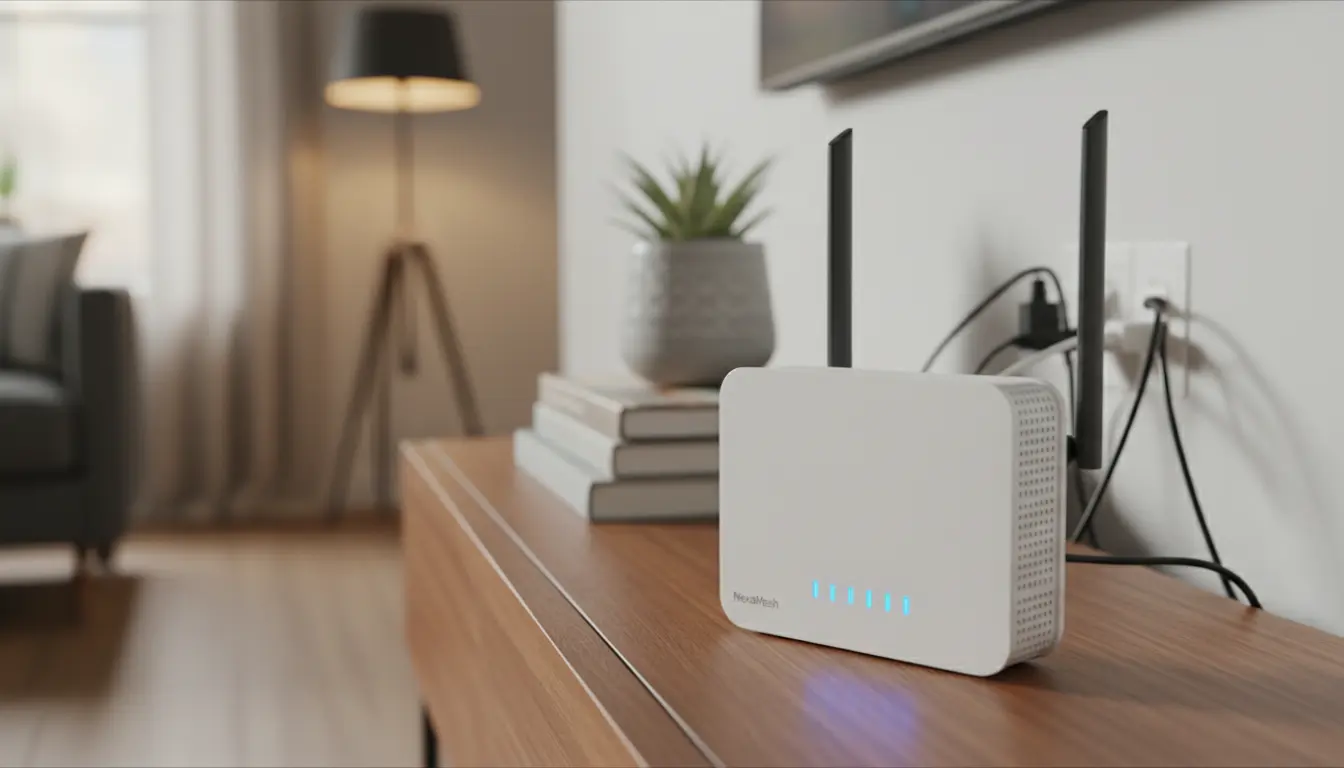
- Move the router: Place it high and central in the home. Keep it away from thick walls and appliances.
- Change the WiFi channel: Switch to a less crowded channel on 2.4 GHz or use 5 GHz for faster local speeds.
- Update firmware: Check the router admin page and install updates to fix bugs and improve performance.
- Limit bandwidth hogs: Pause large downloads, streaming, or cloud backups when you need priority speed.
How to change WiFi channel to fix slow WiFi
Changing channels can reduce interference from nearby networks. Use a phone app or the router admin panel to scan for busy channels.
- Open the router admin page in a browser (check the label for the address).
- Find wireless settings and view available channels.
- Choose a channel with fewer networks (1, 6, and 11 are common for 2.4 GHz).
- Save changes and test speeds on affected devices.
Use 5 GHz or separate SSIDs
5 GHz offers higher speeds at shorter range. If many devices are in one room, connect them to the 5 GHz band.
- Create separate network names (SSIDs) for 2.4 GHz and 5 GHz if your router supports it.
- Assign stationary devices like smart TVs and game consoles to the strongest band or wired Ethernet.
When to upgrade hardware or call your ISP
If simple fixes don’t help, it may be time for an upgrade or a service check from your ISP. Look for consistent slow speeds and frequent disconnects.
- Signs you need new hardware: router is older than three years, weak signal across the house, or poor speeds on wired and wireless devices.
- Call your ISP if expected speeds are not delivered after router fixes. They can test the line and check for outages or throttling.
Choosing the right router
Pick a router that matches your internet plan and home size. For plans over 100 Mbps, choose a modern dual-band or tri-band router.
- Small apartments: a single dual-band router is often enough.
- Larger homes: consider mesh systems or access points for even coverage.
- Gaming or 4K streaming: look for Quality of Service (QoS) and higher throughput specs.
Long-term solutions to stop slow WiFi at home

Long-term planning reduces headaches and keeps speeds stable for all devices. Use wiring and multiple access points where possible.
- Install Ethernet where you can for fixed devices like TVs and desktop PCs.
- Use mesh WiFi or additional access points for consistent coverage in large homes.
- Set guest networks to isolate visitor devices and protect your main network.
- Enable automatic firmware updates and schedule a monthly reboot if needed.
Simple tests and tools to diagnose slow WiFi
Testing helps you know if the issue is WiFi or your ISP. Run tests from devices in different rooms at different times.
- Speed tests (use sites or apps) to check download and upload speeds.
- WiFi analyzer apps show channel congestion and signal strength by location.
- Check router logs for frequent disconnects or error messages.
Real-world example: small family fixes slow WiFi
A family with four people had slow streaming and lagging video calls in two rooms. Their router sat in a corner behind a bookshelf.
Steps they tried:
- Moved the router to a central shelf and raised it above furniture.
- Switched to the 5 GHz band for TVs and laptops in the living room.
- Updated router firmware and changed to a less crowded channel.
Result: After these steps, streaming quality improved and video call lag dropped. Downloads reached expected speeds on tests, and phones showed stronger signal in all rooms.
Summary: fix slow WiFi at home with step-by-step action
Start with a router restart, repositioning, and channel changes. Use 5 GHz for high-demand devices and wired connections where possible.
If problems persist, update hardware or contact your ISP. Small changes often give a big speed boost without cost.