
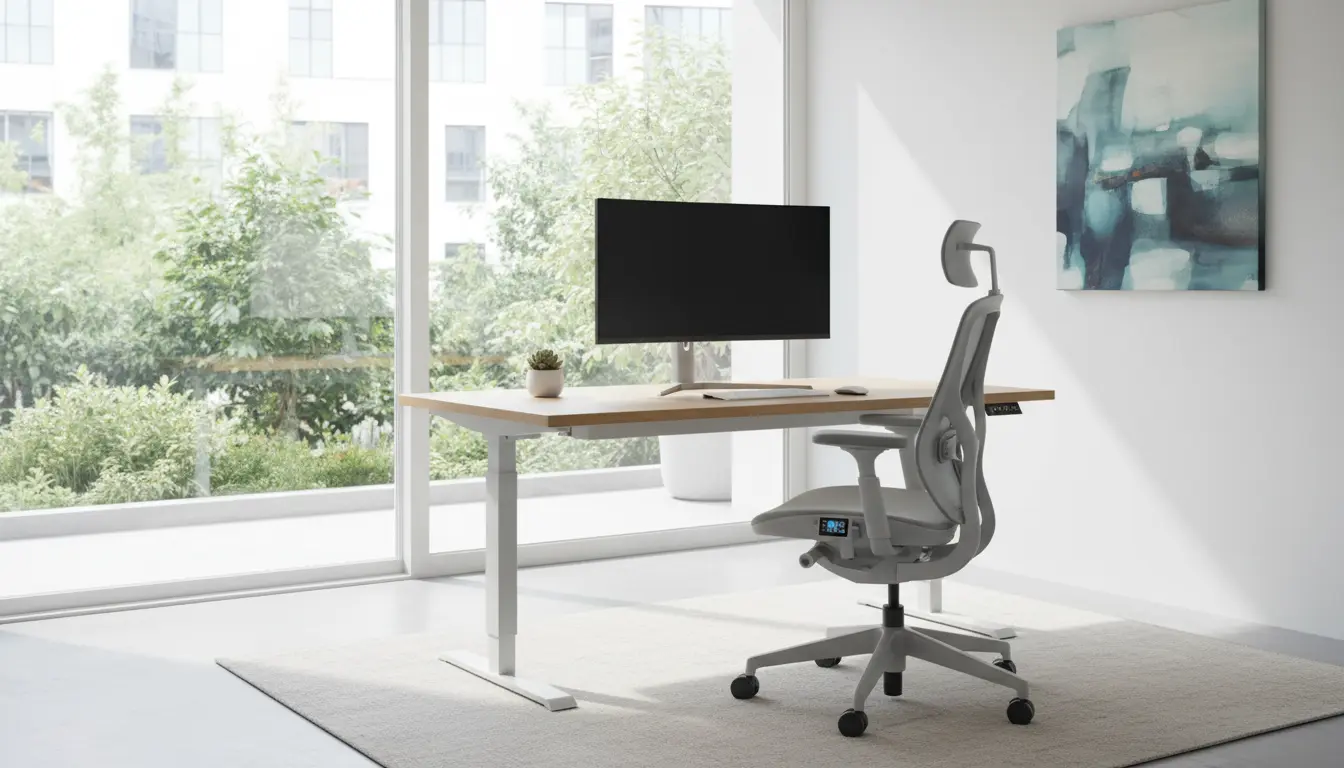
Why an Ergonomic Home Office Setup Matters
An ergonomic home office setup reduces strain on your body and improves focus. Small adjustments to your desk, chair, and screen can prevent long-term pain and boost productivity.
This guide gives practical steps you can apply today, with clear actions and quick checks.
Ergonomic Home Office Setup: Quick Checklist
- Desk height: elbows at 90 degrees when typing.
- Chair support: lumbar support and feet flat on the floor.
- Monitor position: top of the screen at or slightly below eye level.
- Lighting: even, glare-free, and adjustable.
- Movement: take short breaks and stretch every 30–60 minutes.
Desk and Chair: Core Elements of an Ergonomic Home Office Setup

Start with the foundation — your desk and chair. These determine your posture and comfort for hours each day.
Choose the Right Chair for an Ergonomic Home Office Setup
Use a chair with adjustable seat height, backrest tilt, and lumbar support. Adjust the seat so your knees are roughly at hip level and feet rest flat on the floor.
If your chair lacks lumbar support, add a small cushion or rolled towel behind your lower back for better spine alignment.
Set Desk Height and Work Surface

Your forearms should be parallel to the floor when typing. If the desk is too high, lower your chair and add a footrest. If it is too low, use monitor risers or a keyboard tray.
Consider a sit-stand desk for alternating positions. Change posture every 30 to 60 minutes to reduce static load on any one muscle group.
Monitor, Keyboard, and Mouse Placement
Correct screen and input placement reduce neck, shoulder, and wrist strain. These are common sources of discomfort in a home office setup.
Monitor Tips for an Ergonomic Home Office Setup

Place the monitor about an arm’s length away. The top of the screen should be at or slightly below eye level to keep your neck neutral.
For dual monitors, place the primary one directly in front of you and the second slightly to the side. Use a single large monitor if you find side-to-side turning causes neck pain.
Keyboard and Mouse Positioning
Keep the keyboard centered in front of you and the mouse at the same level. Avoid reaching forward; keep elbows close to your sides.
Use a wrist rest only as a break between typing, not while actively typing. Consider an ergonomic keyboard or vertical mouse if you have wrist discomfort.
Lighting, Glare, and Screen Settings
Light affects both comfort and productivity. Reduce eye strain by balancing natural and artificial light sources.
- Avoid placing the monitor directly in front of a bright window.
- Use adjustable task lighting for paperwork.
- Adjust screen brightness and contrast to match the room.
Movement, Breaks, and Micro Exercises
Sitting in one position for long periods is harmful, even with perfect ergonomics. Movement is essential for circulation and comfort.
Set a timer for short breaks. Try these micro exercises:
- Neck rolls and shoulder shrugs for 30 seconds.
- Standing calf raises to stimulate leg circulation.
- Seated spinal twist to relieve lower back stiffness.
Sitting for more than 8 hours a day increases the risk of back pain and other health issues. Short movement breaks every 30–60 minutes significantly reduce this risk.
Accessories That Improve an Ergonomic Home Office Setup
Small tools make a big difference. Choose items that match your specific pain points and workflow.
- Footrest for feet that don’t reach the floor.
- Monitor riser to reach correct eye level.
- Document holder to keep papers at screen height and reduce neck bending.
- Anti-fatigue mat if you use a standing desk often.
Case Study: Simple Changes, Big Results
Maria, a graphic designer, reported daily neck pain after months of working from her kitchen table. She switched to a mid-height office chair with lumbar support and raised her monitor on a stack of books to eye level.
Within two weeks she noticed less neck tension and increased focus. Her productivity improved because she could work longer without discomfort.
Checklist to Implement Today
- Adjust chair so feet are flat and knees are at hip level.
- Raise or lower monitor to align with eye level.
- Keep keyboard and mouse within comfortable reach.
- Set a timer for movement every 30–60 minutes.
- Try one accessory (footrest, monitor riser, or document holder) this week.
Final Tips for Sustaining an Ergonomic Home Office Setup
Revisit your setup every few months or after significant changes in work habits. Small adjustments over time keep your workspace aligned with your body and tasks.
Listen to your body. If pain persists, consult a healthcare professional or an occupational therapist for personalized advice.