
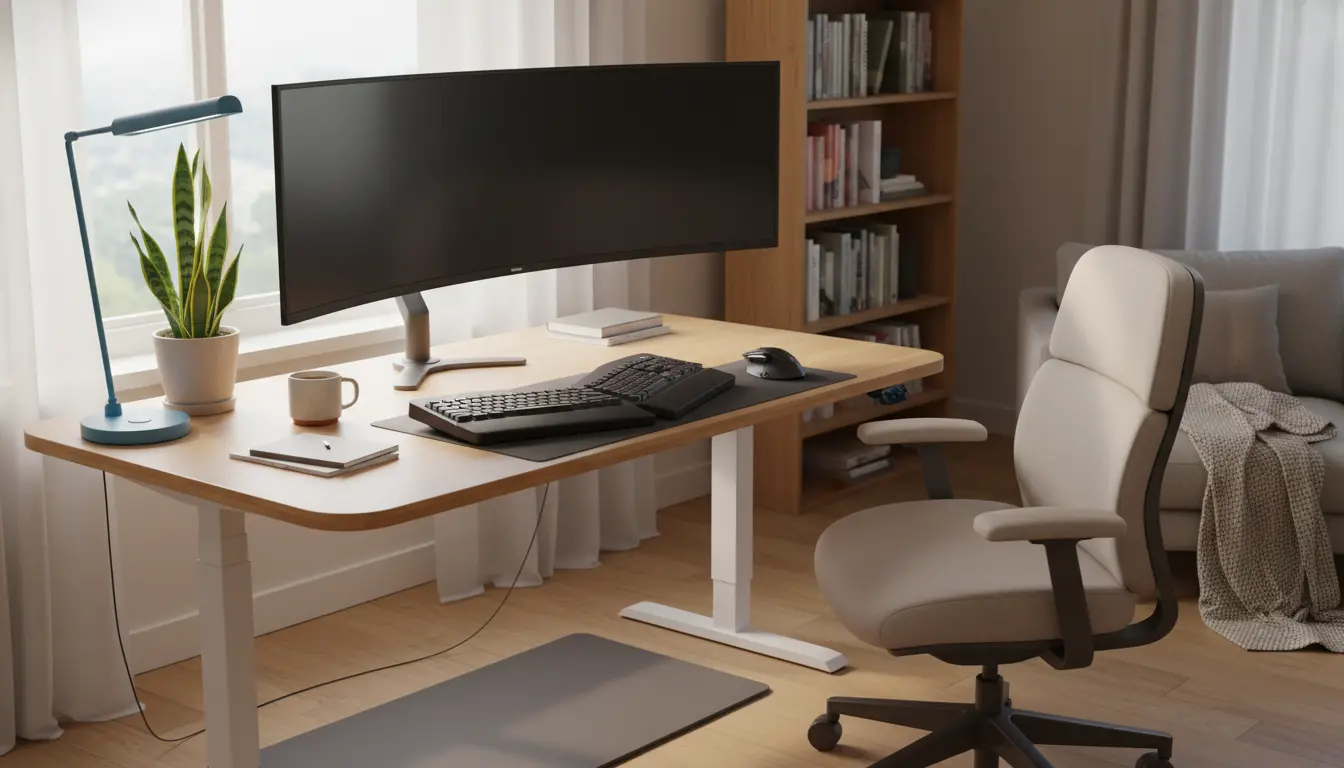
Why Home Office Ergonomics Matters
Home office ergonomics improves comfort and reduces the risk of pain after long workdays. A correct setup supports posture, reduces fatigue, and helps sustain productivity over weeks and months.
Small changes in desk height, chair support, and monitor position often deliver the fastest benefits. This guide gives clear, practical steps to set up a healthier home workspace.
Basic Principles of Home Office Ergonomics
Start with three simple goals: neutral posture, minimal strain, and easy reach to tools. Neutral posture means your spine is supported and joints are not at extreme angles.
Ergonomics focuses on body alignment, support, and movement. Frequent short breaks and small adjustments help maintain comfort.
Neutral Posture Checklist
- Feet flat on the floor or on a footrest.
- Knees at or slightly below hip level.
- Elbows near the body and bent about 90 degrees.
- Wrists straight while typing or using a mouse.
- Top of the monitor at or slightly below eye level.
Desk and Chair Setup for Home Office Ergonomics
Begin with the chair because it supports the body for hours. Choose a chair with lumbar support and adjustable height.
Adjust the chair so your feet rest flat and your thighs are roughly parallel to the floor. If your feet dangle, use a stable footrest or a small stool.
Chair Adjustments
- Seat height: Adjust until your feet are flat and knees form a 90-degree angle.
- Lumbar support: Use built-in support or a small cushion to maintain the lower back curve.
- Seat depth: Leave a 2–3 finger gap between the seat edge and the back of your knees.
- Armrests: Set them so shoulders are relaxed and elbows stay close to your body.
Monitor, Keyboard, and Mouse Placement
Monitor height and distance affect neck strain. Place the monitor about an arm’s length away and center it with your workzone.
The top of the screen should sit at or slightly below eye level. If you use two monitors equally, place them side by side and slightly angled toward you.
Keyboard and Mouse Tips
- Keep the keyboard and mouse close to the front edge of the desk to avoid reaching.
- Use a keyboard tray if necessary to maintain a neutral wrist position.
- Consider a vertical or ergonomic mouse if you experience wrist pain.
- Take microbreaks: rest hands for 30 seconds every 10 minutes when possible.
Lighting, Screen Glare, and Accessories
Good lighting reduces eye strain and headaches. Position the monitor perpendicular to windows to limit glare.
Use a desk lamp with adjustable brightness for focused tasks. Blue-light filters or software can reduce evening eye strain.
Useful Accessories
- Adjustable monitor stand or riser to achieve correct height.
- Document holder to keep papers at screen height.
- Anti-fatigue mat for standing desks.
- Noise-cancelling headphones for focus in busy households.
Short, frequent breaks—five minutes every hour—can cut musculoskeletal discomfort and maintain productivity better than a single long break.
Movement and Work Habits for Better Home Office Ergonomics
Even the best setup needs movement. Aim to change posture or stand up every 30–60 minutes.
Simple actions like calf stretches, shoulder rolls, and standing phone calls reduce stiffness and improve circulation.
Practical Routine Suggestions
- Pomodoro method: 25 minutes focused work, 5 minutes break—stand or move during breaks.
- Two longer breaks per day for a short walk or light exercise.
- Stretching routine: 3–5 minutes of neck, shoulder, and wrist stretches mid-morning and mid-afternoon.
Case Study: Simple Changes That Reduced Pain
Anna, a freelance writer, had neck pain after long days at her kitchen table. She applied home office ergonomics over two weeks.
Changes included raising her monitor with a stack of books to eye level, lowering her chair and adding a footrest, and setting a 45-minute timer to stand and stretch.
Within ten days she reported less neck stiffness and fewer headaches. Her productivity increased because she could work longer without discomfort.
Quick Start Checklist for Home Office Ergonomics
- Adjust chair height and lumbar support.
- Set monitor distance and height to eye level.
- Place keyboard and mouse within easy reach.
- Improve lighting and reduce screen glare.
- Schedule regular movement breaks and short stretches.
Final Tips for Sustainable Comfort
Test small changes and keep what works. Ergonomics is personal—minor adjustments often yield the best results.
If pain persists despite changes, consult a healthcare professional or ergonomist for tailored advice. Early action prevents long-term problems and keeps your home office productive and comfortable.