
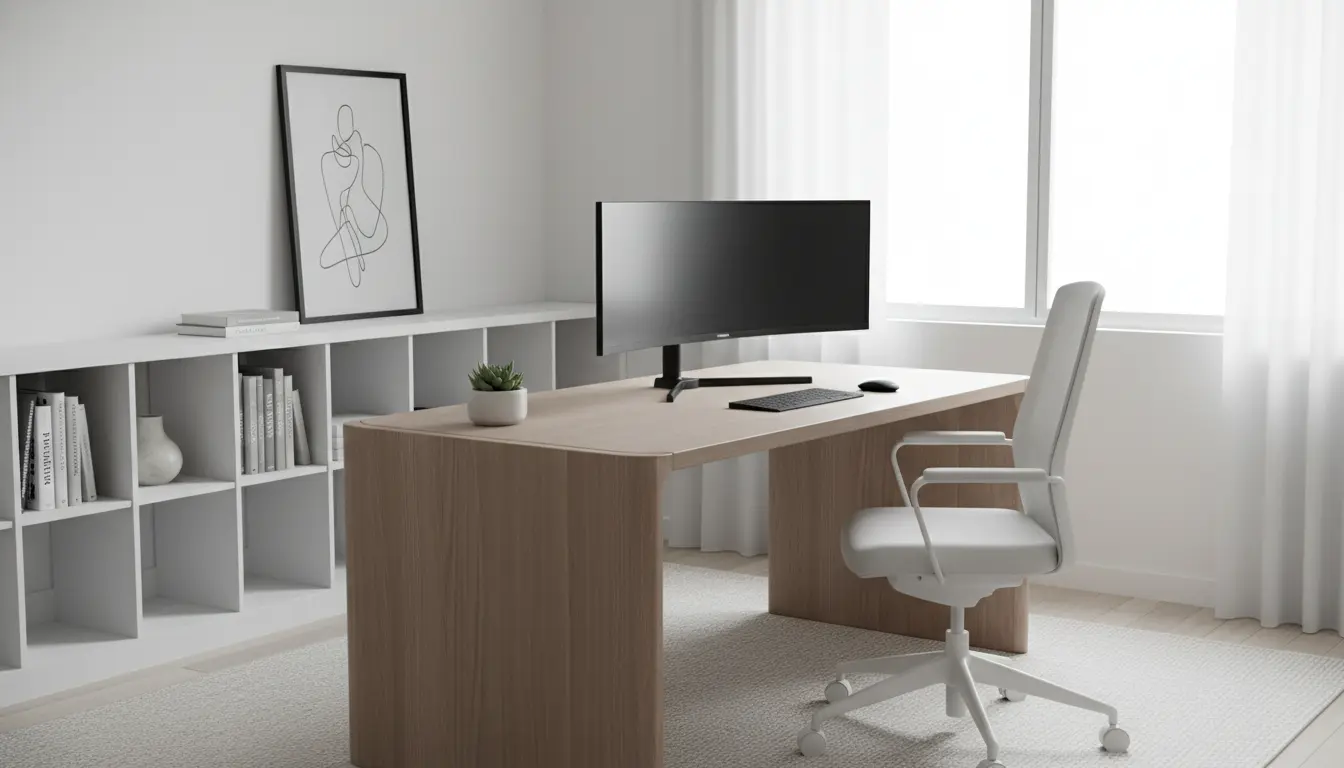
Why Home Office Ergonomics Matter
Good home office ergonomics reduce pain and fatigue, improving focus and productivity. Poor setup can cause neck, shoulder, and lower back problems that affect work quality.
Applying ergonomic principles is often inexpensive and relies on correct positioning more than pricey equipment. Small adjustments can make a big difference.
Key Ergonomic Principles for Your Home Office
Neutral Posture and Alignment
Neutral posture means your spine is naturally curved, shoulders relaxed, and wrists straight while typing. This alignment reduces strain on muscles and joints.
Important points to check are seat height, back support, and monitor placement to keep your head and neck aligned.
Support and Movement
Support includes a chair with lumbar adjustment and a stable desk surface. Movement means changing posture frequently—sitting all day is risky even with perfect posture.
Alternate between sitting and standing, and take short movement breaks every 30–60 minutes.
Practical Setup Steps: Home Office Ergonomics Checklist
Follow this step-by-step checklist to set up a comfortable workspace. Each step includes simple measurements or rules of thumb.
- Chair: Adjust seat height so feet rest flat on the floor. Knees should be level with hips or slightly lower.
- Back Support: Use the chair’s lumbar support or add a lumbar cushion to maintain the natural lower-back curve.
- Desk Height: Set desk or keyboard height so forearms are parallel to the floor and wrists are straight while typing.
- Monitor Position: Place the monitor an arm’s length away. The top of the screen should be at or slightly below eye level.
- Keyboard and Mouse: Keep them close to avoid reaching. Use a negative-tilt keyboard tray if your wrists bend upward.
- Laptop Use: If using a laptop, add an external keyboard and mouse and raise the laptop screen with a stand to meet monitor height rules.
- Lighting: Use task lighting to reduce glare. Position light sources to avoid reflections on the screen.
Accessories That Help with Home Office Ergonomics
Not all accessories are necessary, but some add comfort and make posture easier to maintain. Choose based on budget and specific issues.
- Adjustable chair with lumbar support
- External keyboard and mouse
- Monitor stand or adjustable arm
- Footrest if your feet do not reach the floor
- Anti-glare screen filter for bright rooms
Quick Exercises and Break Schedule
Movement reduces stiffness and improves circulation. Use short microbreaks and simple stretches throughout the day.
- 20-20-20 rule: every 20 minutes, look at something 20 feet away for 20 seconds.
- Microbreaks: stand and move for 1–2 minutes every 30 minutes.
- Stretch sequence: neck rolls, shoulder rolls, chest opener, seated spinal twist — hold each for 15–30 seconds.
Regular short breaks can reduce musculoskeletal pain. Studies show that brief movement breaks every 30–60 minutes lower discomfort and improve concentration.
Common Mistakes to Avoid in Home Office Ergonomics
Avoid these frequent errors that undermine comfort and productivity. Fixing them often takes only a few minutes or inexpensive tools.
- Sitting too low or too high relative to the desk, causing shoulder and wrist strain.
- Placing the monitor too low, leading to forward head posture.
- Using a laptop without an external keyboard and stand for long periods.
- Ignoring lighting and glare that force awkward viewing angles.
Case Study: Small Company Remote Worker
Maria, a graphic designer working from a 9 ft by 9 ft spare room, developed neck pain after three months of remote work. Her laptop was on the coffee table and she sat on a soft couch for long hours.
She followed a simple ergonomics plan: moved to a small desk, raised the laptop on a stand, added an external keyboard and mouse, and adjusted chair height so her feet rested flat on the floor.
Within two weeks Maria reported less neck and shoulder pain and improved focus. Her productivity returned, and she now alternates standing for 30 minutes each morning.
Simple Measurements and Examples
Use these concrete examples when adjusting your workspace. These rules of thumb work for most adults.
- Monitor distance: 20–30 inches (an arm’s length).
- Monitor height: top of screen at or just below eye level.
- Seat height: knees at roughly 90–100 degrees; feet flat on floor or on a footrest.
- Typing height: elbows at 90–110 degrees; wrists straight while typing.
Wrap Up: Maintain and Adjust Over Time
Ergonomics is not a one-time task. Reassess your setup whenever you change equipment, experience discomfort, or alter your work routine.
Start with low-cost changes, track your comfort for a few weeks, and invest in adjustable equipment when necessary. Small steps pay off in reduced pain and better work performance.