
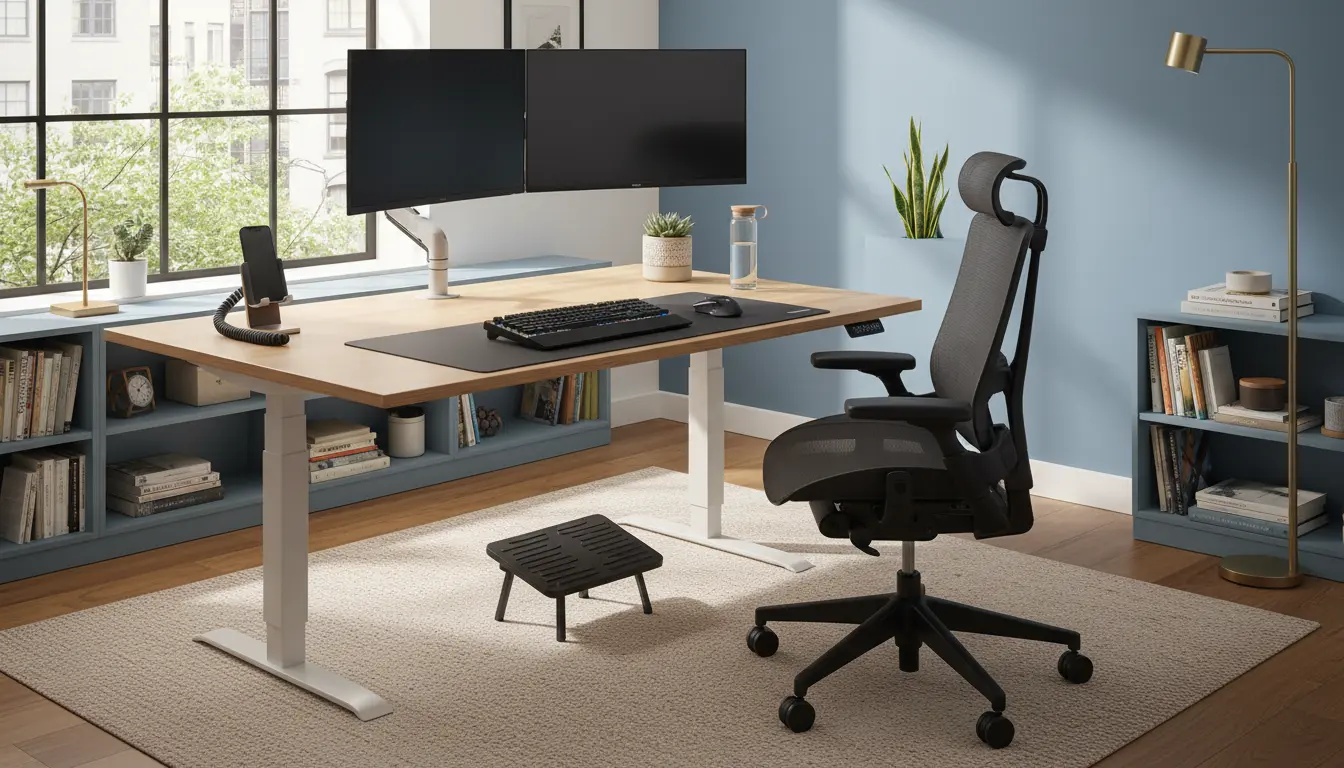
Working from home long-term makes a good ergonomic setup essential. Small changes in desk height, monitor placement, and movement habits can reduce pain and improve focus.
Home office ergonomics essentials
Start by assessing your current setup before buying equipment. Note where you feel discomfort, which tasks you do most, and how long you sit each day.
Identify three priorities: posture support, neutral screen and keyboard position, and frequent movement. These priorities guide practical adjustments you can make immediately.
Desk and chair setup for home office ergonomics
Choose a chair that supports your lower back and allows your feet to rest flat on the floor. If the chair is too high, use a footrest; if too low, raise the chair and lower the desk or use a keyboard tray.
Maintain a relaxed elbow angle around 90 degrees when typing. Your forearms should be parallel to the floor and wrists neutral to reduce strain.
Monitor and laptop placement for home office ergonomics
Position the top of your monitor at or slightly below eye level to keep your neck neutral. Place the screen about an arm’s length away to reduce eye strain.
If you use a laptop, add an external keyboard and mouse and raise the laptop on a stand or stack of books. This keeps the screen at the right height while allowing proper hand position.
Lighting, movement, and accessories for home office ergonomics
Good lighting reduces glare and prevents you from leaning forward or squinting. Use natural light when possible, and add a desk lamp with adjustable brightness for late hours.
Accessories like an adjustable monitor arm, ergonomic keyboard, and vertical mouse can make small but meaningful improvements to comfort and posture.
Lighting and screen glare in home office ergonomics
Position monitors perpendicular to windows to avoid direct glare. If glare remains a problem, use a matte screen filter or reposition the light source.
Consider blue-light filters or night mode for evening use, but prioritize brightness and contrast settings that keep text crisp without forcing you to lean closer.
Movement, breaks, and micro-adjustments
Sitting continuously increases risk of discomfort. Use a timer or app to follow the 20-8-2 rule: every 20 minutes shift posture, every 50–60 minutes stand and move for 5–10 minutes.
Incorporate small stretches targeting the neck, shoulders, back, and hips. Even short walking breaks improve circulation and cognitive performance.
Practical steps and checklist for home office ergonomics
Follow this simple checklist to create a basic ergonomic setup you can test and improve over two weeks.
- Chair: Adjust seat height so feet are flat and knees at 90 degrees.
- Back support: Add lumbar support or a cushion if needed.
- Desk: Ensure forearms are parallel to the floor while typing.
- Monitor: Top of screen at eye level and an arm’s length away.
- Keyboard and mouse: Keep them close to avoid reaching.
- Lighting: Reduce glare and add task lighting as required.
- Movement: Schedule regular breaks and posture shifts.
Two-week adjustment plan
Week 1: Make one change per day—chair height, monitor height, keyboard position, then lighting. Track pain levels and focus for each day.
Week 2: Add accessories like a footrest or monitor arm, and refine break timing. Keep what helps and discard what doesn’t.
Small case study: Real-world results applying home office ergonomics
Case study: Sarah, a remote accountant, had daily lower back stiffness and afternoon fatigue after months of working from her kitchen table.
She followed the checklist: upgraded to a supportive chair, raised her laptop with a stand, used an external keyboard, and set an hourly walk reminder. In three weeks she reported a 70% reduction in back stiffness and clearer focus in the afternoons.
Her experience shows that simple, low-cost changes often produce measurable gains in comfort and productivity.
Examples of low-cost ergonomic upgrades
- Use a firm cushion for lumbar support or a folded towel when a lumbar pillow is not available.
- Repurpose a box or stack of books as a laptop riser.
- Place a small stool or thick book under feet if your chair leaves feet dangling.
- Use a phone stand and headset for long calls to avoid cradling the phone between shoulder and ear.
Changing posture frequently during the day can be as effective as investing in high-end ergonomic equipment. Movement reduces muscle fatigue and improves blood flow.
Final checks and tips for lasting home office ergonomics
Reassess your setup every few months or when you notice new discomfort. Small iterative changes are better than large replacements that don’t fit your workflow.
Keep a short log for two weeks after any adjustment: note pain level, focus, and energy. Use those notes to prioritize further changes.
Applying home office ergonomics is practical and often inexpensive. Start with posture, screen height, and movement—then refine your setup based on what actually reduces discomfort and boosts concentration.