
Why Improve Home WiFi Signal Matters
A weak WiFi signal can cause video calls to drop, slow downloads, and dead zones in your home. Improving your home WiFi signal makes everyday tasks smoother and more reliable.
This guide gives clear, practical steps to diagnose problems and boost coverage without jargon. Follow the steps that match your budget and needs.
Common Causes of Weak Home WiFi Signal
Knowing the cause helps you choose the right fix. Many problems are simple and low-cost to resolve.
- Poor router placement or orientation
- Interference from appliances and other wireless devices
- Outdated router firmware or hardware
- Too many connected devices sharing bandwidth
- Physical obstructions like thick walls or floors
Quick Diagnostics to Improve Home WiFi Signal
Before buying equipment, run basic checks. Small changes often yield big improvements.
- Check speeds: Use a speed test app near the router and in problem rooms.
- Note times: Are slowdowns constant or only at peak hours?
- Device check: Test multiple devices to rule out a single faulty gadget.
- Router reboot: Restart your router and modem and test again.
How to Improve Home WiFi Signal: Placement and Settings
Placement and software settings are the easiest ways to improve home WiFi signal. Try these first because they cost nothing.
Reposition Your Router
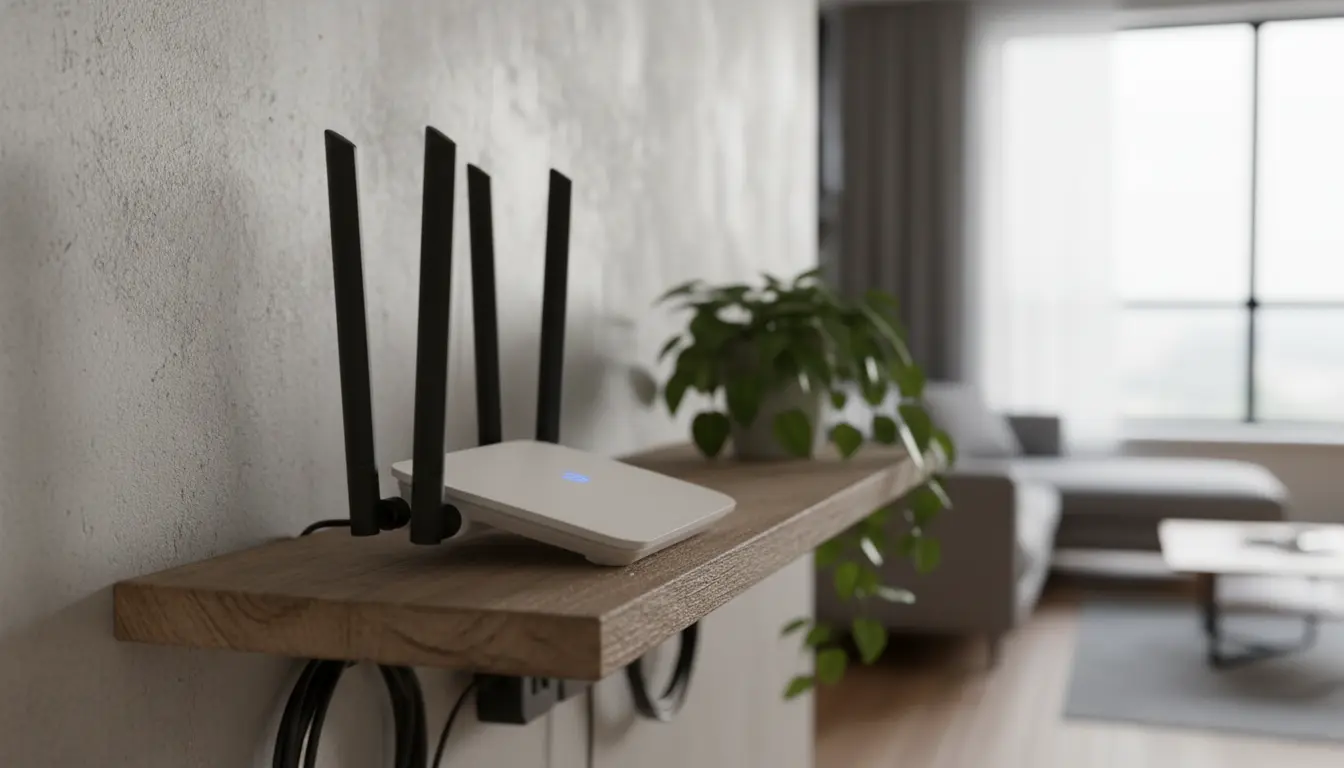
Place the router in a central, elevated spot away from large metal objects. Keep it out in the open, not inside cabinets.
Orient external antennas vertically for broad coverage, or experiment with one vertical and one angled for multi-floor homes.
Change Frequency Bands and Channels
Use the 5 GHz band for faster speeds near the router and 2.4 GHz for longer range. Switch channels if neighbors use the same one.
Use a WiFi analyzer app to find the least crowded channel and update the router settings accordingly.
Update Firmware and Review Security
Check the router admin page for firmware updates. Updated firmware improves performance and fixes bugs.
Secure your network with WPA2 or WPA3 and a strong password to prevent unauthorized users from slowing your connection.
Hardware Upgrades to Improve Home WiFi Signal
If placement and settings don’t solve the problem, hardware changes can help. Prioritize upgrades based on where you need coverage.
Use a Mesh System or WiFi Extender
Mesh WiFi systems place multiple nodes around your home for seamless coverage. They are ideal for large or multi-floor homes.
Extenders are cheaper but can halve throughput on the extended band. Use extenders when budget is tight.
Wired Alternatives
Where possible, connect high-demand devices (TVs, gaming consoles, PCs) via Ethernet. This frees WiFi bandwidth for mobile devices.
Powerline adapters can carry network signals over home wiring where running Ethernet is impractical.
Reduce Interference to Improve Home WiFi Signal
Interference from microwaves, cordless phones, baby monitors, and Bluetooth devices can weaken WiFi. Move the router away from these items.
- Avoid placing the router behind or under large appliances.
- Disable unused wireless devices or move them further from the router.
- Consider switching microwave schedules or locations if they cause drops during key tasks.
Advanced Settings and Tips
For more control, try these advanced tips. They are practical but may require accessing router settings.
- Enable Quality of Service (QoS) to prioritize video calls and streaming.
- Lower channel width on crowded networks to reduce interference (e.g., 20 MHz on 2.4 GHz).
- Set separate SSIDs for 2.4 GHz and 5 GHz to force devices onto the best band.
Concrete and brick walls can reduce WiFi signal strength by up to 90 percent compared to drywall. Placing nodes around, rather than through, heavy obstacles improves coverage.
Simple Example: One-Day Fix to Improve Home WiFi Signal
Case study: A two-bedroom apartment had slow video calls in the bedroom. The occupant moved the router from a low cabinet to a shelf in the hallway, switched the router to an uncongested 5 GHz channel, and updated firmware.
Result: Video call stability improved and measured download speeds in the bedroom rose from 12 Mbps to 45 Mbps within one hour and zero cost.
When to Replace Your Router
Replace the router if it is over five years old or lacks modern features like dual-band WiFi, MU-MIMO, or WPA3. Newer routers handle multiple devices and higher speeds better.
If your ISP plan provides more speed than your router can handle, an upgrade will enable the full potential of your connection.
Checklist to Improve Home WiFi Signal
- Run a speed test in multiple rooms.
- Move router to a central elevated location.
- Change channel and use 5 GHz where possible.
- Update firmware and secure your network.
- Consider mesh WiFi or wired connections for persistent dead zones.
Following these steps will resolve most issues without major expense. Start with placement and settings, then progress to hardware if needed.
Small, practical changes often make the biggest difference in everyday WiFi performance.