
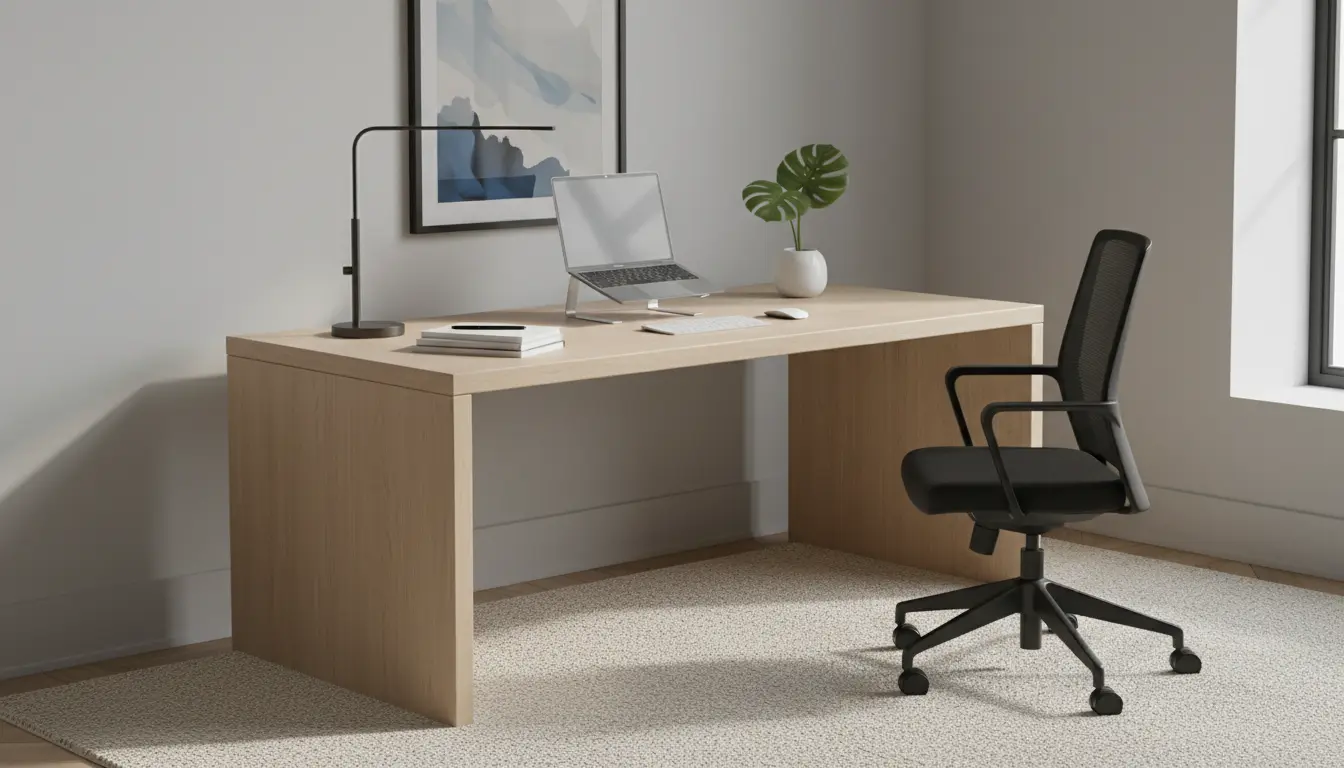
Many people working from home develop aches, fatigue, and reduced focus because their workspace is not set up correctly. This guide gives clear, actionable steps to improve comfort, prevent injury, and maintain productivity with minimal expense.
Why Home Office Ergonomics Matters
Poor ergonomics leads to neck and back pain, wrist strain, and tiredness. Small adjustments can make a big difference in comfort and long-term health.
Ergonomic improvements also help concentration and reduce microbreaks caused by discomfort. Consider this an investment in daily performance and well-being.
Basic Principles of Home Office Ergonomics
Follow these core principles when arranging your workspace. They apply whether you have a dedicated office or a corner of a room.
- Neutral posture: Keep spine aligned, elbows near your sides, and wrists straight.
- Frequent movement: Stand, stretch, or walk briefly every 30–60 minutes.
- Support where needed: Use a lumbar cushion or adjustable chair to support lower back.
- Reduce static reach: Place frequently used items within easy distance to avoid overreaching.
Setting Your Desk for Home Office Ergonomics
Start with desk and chair height. The correct relationship between these two elements is crucial for a neutral posture.
Chair Height and Support
Adjust chair so feet rest flat on the floor or on a footrest. Knees should be at or slightly below hip level.
Use lumbar support to maintain the natural curve of the lower back. If your chair lacks support, add a small cushion.
Monitor Position
Place the top of the monitor at or slightly below eye level. The screen should be about an arm’s length away to reduce eye strain.
For laptop users, use a separate keyboard and mouse and raise the laptop on a stand to reach correct eye level.
Keyboard and Mouse Placement
Keep keyboard and mouse close and at a height where forearms are parallel to the floor. Avoid bending wrists upward; use a padded wrist rest if needed.
Use keyboard shortcuts and a light-touch typing style to reduce repetitive stress.
Lighting, Glare, and Screen Care
Good lighting reduces eye strain. Position your desk so windows provide indirect light rather than direct glare on screens.
- Use adjustable task lighting for reading documents.
- Reduce screen brightness to comfortable levels and enable blue light filters in the evening.
- Clean screens regularly to keep text sharp and reduce squinting.
Practical Accessories That Improve Home Office Ergonomics
You don’t need expensive gear to make significant ergonomic gains. Consider these low-cost items:
- External keyboard and mouse for laptop users.
- Adjustable monitor stand or stack of books to raise screen height.
- Footrest to support feet if chair height is too high.
- Lumbar cushion or small rolled towel for lower back support.
- Document holder positioned near the screen to avoid neck twisting.
Routine and Movement for Long-Term Benefits
Even the best setup needs movement. Build micro-breaks into your day to avoid stiffness and maintain circulation.
- Every 30 minutes: stand or stretch for 30–60 seconds.
- Every 60–90 minutes: take a 5–10 minute walk or do light mobility exercises.
- Use reminders or apps to prompt movement if you tend to get absorbed in work.
Adjusting your monitor height by just 2–3 inches can reduce neck strain significantly. Small changes often yield noticeable comfort gains within days.
Quick Ergonomic Checklist
Use this checklist to review your setup in 5–10 minutes:
- Chair supports lower back and allows feet to rest flat.
- Top of monitor at eye level and centered directly in front of you.
- Keyboard and mouse within easy reach and at elbow height.
- Lighting is even, with minimal screen glare.
- Planned movement breaks scheduled throughout the day.
Case Study: Small Changes, Big Results
Sarah, a graphic designer, suffered hourly headaches and wrist soreness while working from her kitchen table. She implemented three changes over a week: raised her laptop on a stand, added an external keyboard and mouse, and used a lumbar cushion on a dining chair.
Within five days she reported fewer headaches and less wrist pain. Her productivity improved because she took fewer microbreaks for discomfort and felt more energized at midday.
Troubleshooting Common Issues
If neck pain persists, verify monitor height and check for forward head posture. If wrist pain continues, evaluate keyboard angle and mouse size.
Consider consulting a physical therapist or ergonomic specialist for persistent or severe pain. They can assess posture, workstation setup, and recommend targeted exercises.
Final Tips for Sustainable Home Office Ergonomics
Start with one or two changes and observe how your body responds. Gradual adjustments are easier to maintain and often just as effective as a complete overhaul.
Keep a simple log of discomfort levels and what you changed; this helps identify which interventions are most effective for you.
Good ergonomics is a mix of setup and routine. With focused adjustments and consistent movement, you can reduce pain, increase comfort, and sustain better productivity at home.