
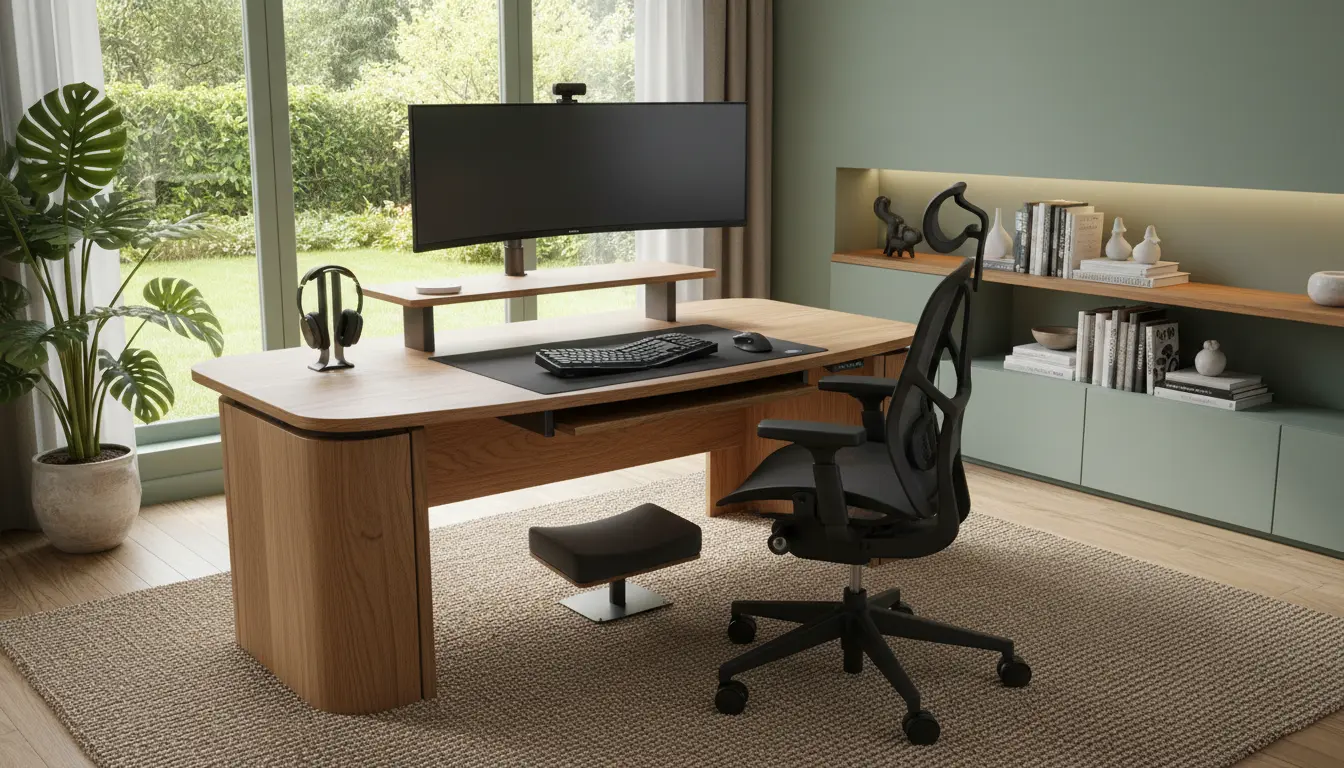
Why an Ergonomic Home Office Setup Matters
An ergonomic home office setup reduces strain and supports long-term health. Remote workers who ignore posture and workstation layout commonly develop neck, shoulder, and back pain.
This guide gives clear, actionable steps to improve comfort, reduce fatigue, and maintain productivity throughout the workday.
Core Principles of an Ergonomic Home Office Setup
Ergonomics centers on fitting the workspace to the person, not forcing the person to adapt. Key principles include neutral posture, proper support, and repeatable habits.
Start by assessing your current setup and identify the biggest pain points you feel during or after work.
Monitor and Screen Placement
Place the top of the monitor at or slightly below eye level. The screen should sit about an arm’s length away to reduce eye strain.
If you use two screens, align them so the primary display is centered and the secondary is beside it. Use a monitor riser if needed.
Chair and Seating Adjustments
Choose a chair that supports the natural curve of your lower back. Adjust seat height so your feet rest flat on the floor or a footrest.
Armrests should allow your shoulders to relax. If they prevent close access to the desk, lower or remove them.
Desk Height and Keyboard Position
Desk height should let your forearms rest parallel to the floor when typing. Wrists should remain neutral, not bent upward or down.
Consider a keyboard tray or an adjustable desk to fine-tune height. Keep frequently used items within easy reach to avoid overreaching.
Lighting, Glare, and Visual Comfort
Good lighting reduces eye strain and keeps you alert. Aim for balanced, diffuse light instead of harsh overhead glare.
Position monitors perpendicular to windows to limit direct glare. Use task lighting for paperwork and reduce screen brightness to match room light.
Accessories That Improve an Ergonomic Home Office Setup
Small tools often make a big difference. The right accessories support posture and promote healthier movement patterns.
- External keyboard and mouse to keep wrists neutral
- Monitor riser or adjustable arm to set screen height
- Footrest for shorter users to support feet and reduce pressure on thighs
- Document holder beside the monitor to avoid neck twisting
- Anti-fatigue mat for standing desk users
Standing Desks and Movement
Alternate between sitting and standing to reduce static loading. Start with short standing periods and gradually increase time.
Standing desks are effective when combined with a well-adjusted monitor and keyboard. Avoid staying in one posture for hours.
Daily Habits to Complement an Ergonomic Home Office Setup
Good habits are as important as equipment. Microbreaks, posture checks, and movement reduce cumulative strain.
- Every 20 minutes: glance away from the screen for 20 seconds to reduce eye fatigue
- Every 30–60 minutes: stand, stretch, or walk for 1–5 minutes
- Schedule longer breaks every 2–3 hours for sustained activity
Real-World Example: Small Business Remote Team
Case study: A small marketing team shifted fully remote and reported wrist and neck pain after three months. They implemented a simple ergonomic checklist for every employee.
Checklist actions included raising monitors, providing external keyboards, scheduling hourly stretch breaks, and offering a stipend for ergonomic chairs. After six weeks, reported discomfort dropped by 60 percent and productivity improved.
Step-by-Step Setup Checklist for an Ergonomic Home Office Setup
Use this checklist to audit and tune your workspace quickly. Spend 30–60 minutes on setup for immediate gains.
- Adjust chair height so feet are flat and knees are at 90 degrees
- Set monitor top at eye level and one arm’s length away
- Position keyboard/mouse so wrists are neutral and elbows close to body
- Arrange lighting to avoid screen glare and add task lighting as needed
- Introduce microbreaks and set reminders to move
- Add accessories such as footrest, document holder, or monitor arm if necessary
Final Tips for Long-Term Comfort
Reassess your setup periodically as tasks and equipment change. Ergonomics is an ongoing process rather than a one-time fix.
If pain persists despite adjustments, consult a healthcare professional for personalized advice. Small, consistent changes often lead to the biggest improvements in comfort and productivity.