
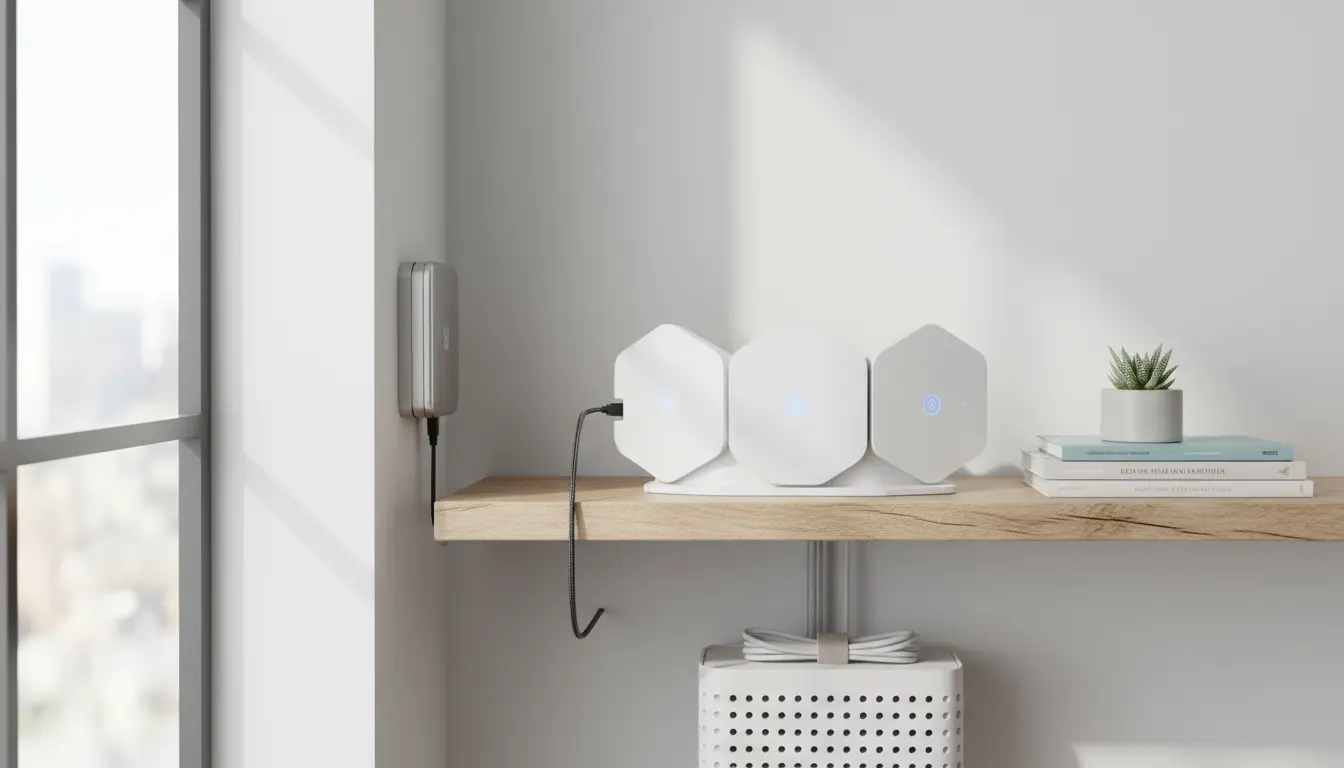
Why improving your home Wi Fi signal matters
Poor Wi Fi can slow work, drop calls, and disrupt streaming. Small changes often deliver big improvements without buying expensive gear.
This guide explains practical steps to improve home Wi Fi signal and offers quick tests you can run today.
Basic checks to improve home Wi Fi signal
Before buying hardware, check simple items that often cause problems. These steps are quick and usually effective.
- Restart your router and modem. Power cycling clears memory and temporary errors.
- Check for firmware updates. Manufacturers release fixes and performance improvements.
- Test different devices and locations. Confirm whether the issue is the network or a single device.
Placement tips to improve home Wi Fi signal
Where you place your router has a major impact on coverage. Wi Fi signals travel outward and are blocked by obstacles.
- Place the router in a central location, not tucked in a cabinet or basement.
- Elevate the router on a shelf or high surface for fewer obstructions.
- Keep the router away from thick walls, large appliances, and metal objects.
Why central placement helps
A central location shortens the distance to every device in the home. This reduces signal loss and improves speed at the edges of your network.
Change channels and frequency bands
Interference from neighbors can slow Wi Fi. Modern routers use 2.4 GHz and 5 GHz bands; each has trade-offs.
- Use 5 GHz for faster speeds and less interference if devices are nearby.
- Use 2.4 GHz for longer range through walls and for older devices.
- Change Wi Fi channels to avoid crowded frequencies—use a scanner app to find the clearest channel.
How to choose channels
On 2.4 GHz pick channels 1, 6, or 11 to avoid overlap. On 5 GHz, choose an uncluttered channel shown by your scanner app.
Optimize router settings to improve home Wi Fi signal
Router settings can affect performance. Small configuration changes often help performance without new hardware.
- Enable WPA2 or WPA3 security to prevent unauthorized users slowing your network.
- Turn on Quality of Service (QoS) to prioritize video calls and streaming over background downloads.
- Disable legacy modes (like 802.11b) if all devices support newer standards; this can reduce slowdowns.
Use extenders, mesh, or wired access points
If placement and settings don’t fix dead zones, consider extending your network. Choose the right option for your home layout and budget.
- Wi Fi extenders are cheap and simple but may cut throughput in half on the extender path.
- Mesh systems use multiple nodes for consistent coverage and are easier to manage in larger homes.
- Wired access points deliver the best performance for streaming or gaming rooms when you can run Ethernet.
When to pick each solution
Choose extenders for small problem areas, mesh for whole-home coverage, and wired access points for demanding setups where speed and low latency matter.
Device-level fixes to improve home Wi Fi signal
Sometimes the issue is the device rather than the network. Tweak device settings to improve connectivity.
- Update device Wi Fi drivers and operating systems for compatibility and performance fixes.
- Forget and reconnect to the network to clear saved configuration issues.
- Move devices away from interference sources like microwave ovens, baby monitors, and cordless phones.
Simple tests to measure improvement
Measure before and after to know if changes worked. Use speed tests and signal strength checks to compare results.
- Run a speed test near the router and at problem locations.
- Check RSSI or dBm readings on your device to see signal strength numbers.
- Repeat tests at different times to factor in variable interference from neighbors.
2.4 GHz signals travel farther but are more crowded, while 5 GHz provides faster speeds but shorter range. Many routers support band steering to pick the best band automatically for each device.
Real-world example: Case study
Sarah, who works from home in a two-bedroom apartment, had frequent video call dropouts. She followed a few steps to improve home Wi Fi signal with solid results.
- She moved her router from the living room floor to a high shelf in the center of the apartment.
- She changed the 2.4 GHz channel to 1 after scanning nearby networks and enabled 5 GHz for her laptop and phone.
- She enabled QoS to prioritize video conferencing traffic during work hours.
Result: Sarah reduced call dropouts and increased median speeds from 15 Mbps to 60 Mbps in her home office. The total effort was under an hour and avoided hardware purchases.
When to upgrade your equipment
If you still have weak signal after trying placement, channels, and small extenders, consider new hardware. Look for routers with the latest Wi Fi standard and strong reviews for coverage.
For large homes, a mesh Wi Fi system often gives the best user experience and easier management than a single powerful router.
Summary checklist to improve home Wi Fi signal
- Restart router and update firmware.
- Place the router centrally and high.
- Choose the correct band and channel.
- Optimize router settings: security, QoS, disable legacy modes.
- Use mesh or wired access points for larger homes.
- Test before and after changes.
Following these practical steps will help you improve home Wi Fi signal with minimal expense. Start with placement and settings, then move to extenders or mesh only if needed.