
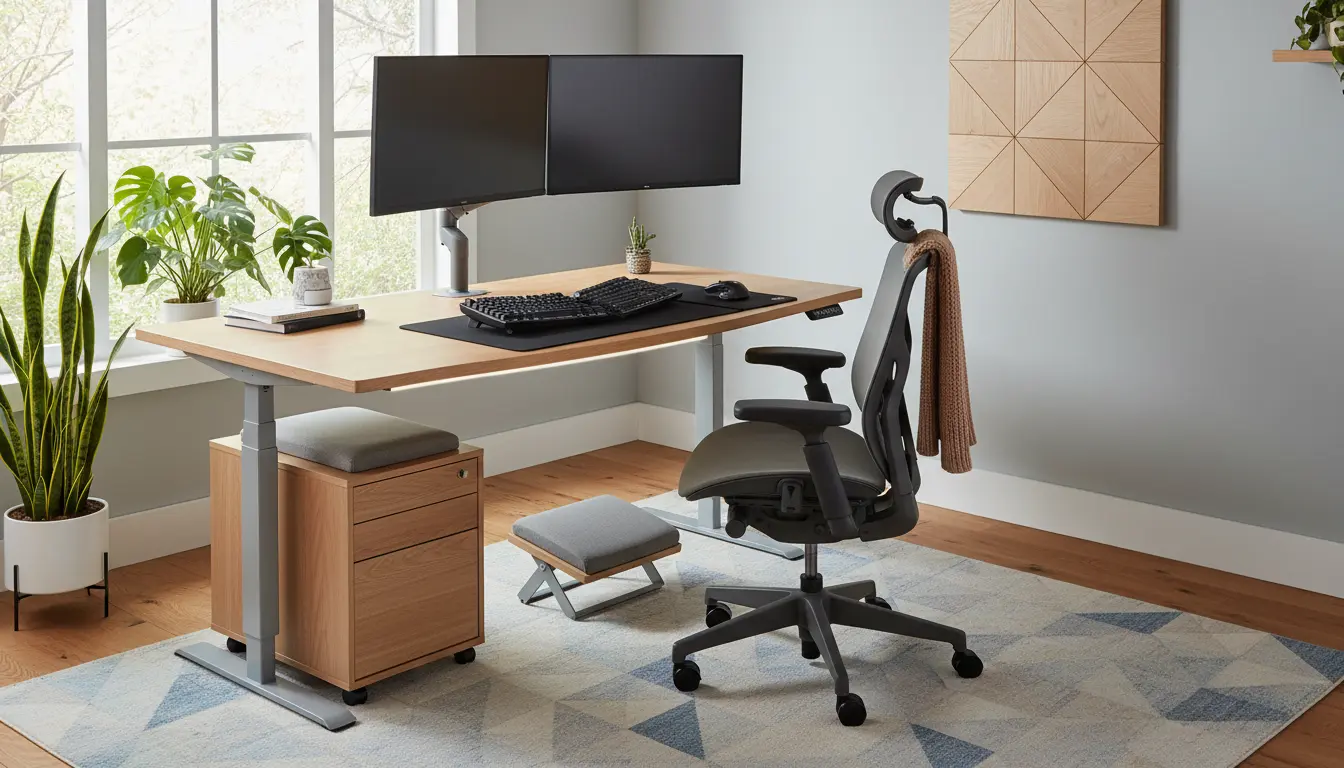
Why Home Office Ergonomics Matters
Good home office ergonomics reduce pain, fatigue, and the risk of repetitive strain injuries. Proper setup also improves focus and work stamina over long days.
Basic Principles of Home Office Ergonomics
Ergonomics is about fitting the workspace to your body, not forcing your body to adapt to the workspace. Focus on neutral posture, support, and minimizing awkward reaches or sustained positions.
Neutral Posture and Alignment
Neutral posture keeps the spine in a natural S-curve and reduces muscle strain. Your head, neck, and torso should be aligned while sitting or standing.
Support and Movement
Use a supportive chair and a setup that encourages small movements and breaks. Alternating between sitting and standing helps circulation and reduces stiffness.
Step-by-Step Setup for Home Office Ergonomics
Follow these practical steps to create an ergonomic workstation you can maintain every day. Each step includes quick checks you can perform in minutes.
1. Choose the Right Chair
Select a chair with adjustable height, lumbar support, and a comfortable seat pan. Adjust the chair so your feet are flat on the floor and your knees are at or slightly below hip level.
2. Position Your Monitor
Place the top of the monitor at or slightly below eye level to avoid neck flexion. Keep the screen about an arm’s length away and slightly tilted upward for comfortable viewing.
3. Keyboard and Mouse Placement
Keep the keyboard and mouse close to your body so elbows remain near your sides. Aim for a neutral wrist position with wrists straight, not bent up or down.
4. Desk Height and Layout
Desk height should allow your forearms to be roughly parallel to the floor when typing. Arrange frequently used items within easy reach to avoid repeated reaching.
5. Lighting and Glare Control
Use soft, even lighting to reduce eye strain and position monitors perpendicular to windows to limit glare. Task lighting can help for reading printed materials without raising screen brightness excessively.
Accessories That Improve Home Office Ergonomics
- Adjustable monitor stand or riser — aligns screen height
- External keyboard and mouse — essential for laptop users
- Footrest — helps when chair height leaves feet dangling
- Document holder — keeps paper at screen level to reduce neck movement
- Anti-fatigue mat — for standing desk use
Practical Routines to Maintain Ergonomics
Good equipment alone won’t prevent discomfort if you sit still for hours. Build routines that include microbreaks, posture checks, and simple stretches.
Break and Move
Set a timer to stand and move for 1–2 minutes every 30 minutes. Take a 5–10 minute walk or light stretch every hour to relieve muscle tension.
Quick Stretch Examples
- Neck tilt and rotation — 5 slow reps each side
- Shoulder rolls — forward and backward, 10 reps
- Chest opener against a doorframe — hold 15–20 seconds
Short frequent movement breaks improve concentration almost as much as longer breaks. Even a one-minute stretch every half hour boosts blood flow and reduces discomfort.
Common Mistakes to Avoid in Home Office Ergonomics
- Using a laptop on your lap or low table for long periods without external peripherals.
- Sitting with crossed legs or slouched posture for extended time.
- Placing frequently used items out of comfortable reach, causing repetitive twists and stretches.
Budget-Friendly Ergonomic Upgrades
You don’t need a large budget to improve your workspace. Small changes can have a big impact on comfort and productivity.
- Use stacks of books as a temporary monitor riser.
- Buy an inexpensive external keyboard and mouse for laptop users.
- Repurpose a small stool or firm pillow as a temporary footrest.
Case Study: Improving Home Office Ergonomics for a Marketing Manager
Emma, a marketing manager, reported neck pain after long days of remote work. Her laptop was on a dining table and she worked from a wooden chair without armrests.
Emma switched to a laptop riser and external keyboard, raised her chair height, and added a small lumbar cushion. Within two weeks she noticed reduced neck stiffness and fewer headaches.
When to Seek Professional Help
If pain persists despite ergonomic changes, consult a physical therapist or occupational therapist. They can assess posture, movement patterns, and recommend targeted interventions.
Quick Checklist for Home Office Ergonomics
- Top of monitor at eye level
- Feet flat on the floor or supported
- Elbows close to the body at 90–110 degrees
- Wrists straight while typing
- Frequent short movement breaks
Implementing these home office ergonomics steps takes time but yields measurable benefits in comfort and productivity. Start with one change this week and build from there.