
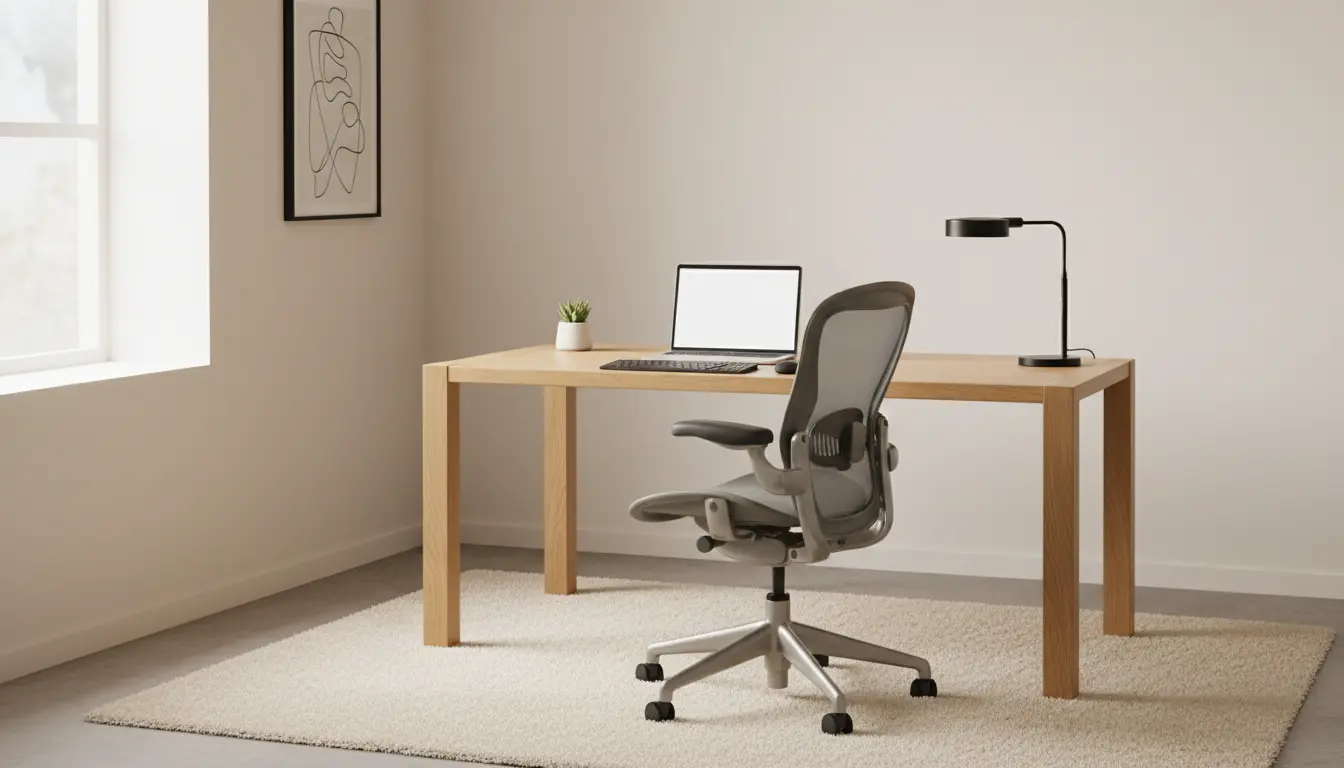
Why Home Office Ergonomics Matter
Home office ergonomics influence comfort, health, and focus during long workdays. Poor ergonomics can cause neck pain, back problems, and reduced productivity if not addressed.
Improving ergonomics often requires small, low-cost adjustments that deliver measurable benefits. This guide explains practical steps to set up a healthier home workspace.
Home Office Ergonomics: Key Principles
Ergonomics is about matching your workspace to your body to reduce strain. The goal is neutral posture, support where needed, and minimizing repetitive stress.
Apply these principles to your chair, desk, monitor, input devices, lighting, and break routines for a complete approach. Small changes add up over weeks.
Chair and Posture
Your chair is the foundation of good home office ergonomics. Use a chair with lumbar support, adjustable height, and stable armrests whenever possible.
Sit with your feet flat on the floor, knees at roughly 90 degrees, and hips slightly higher than knees if possible. Keep your back supported and avoid slouching.
Desk and Monitor Placement
Desk height and monitor position are central to neck and shoulder comfort. Position the top of the monitor at or slightly below eye level to maintain a neutral neck position.
Place the monitor about an arm’s length away. If you wear bifocals, lower the monitor slightly so you can see the screen without tilting your head back.
Keyboard and Mouse
Keep the keyboard and mouse close enough so elbows stay close to the body and forearms remain roughly parallel to the floor. Wrists should be straight, not bent up or down.
Consider a split or negative-tilt keyboard if you type all day, and use a mouse that fits your hand to avoid gripping tightly. Alternate hands when possible for repetitive tasks.
Lighting, Glare, and Screen Settings
Good lighting reduces eye strain and improves comfort. Use a mix of ambient and task lighting to avoid high contrast and glare on the screen.
Adjust screen brightness and text size to comfortable levels, and use blue light filters or night modes in the evening. Position windows to the side of the monitor to reduce reflections.
Step-by-Step Setup for Home Office Ergonomics
Follow these steps to tune your home office ergonomics in 20 to 30 minutes. You can test and tweak settings over a few days for best results.
- Adjust chair height so feet rest flat and knees are near 90 degrees.
- Set monitor height so the top is at eye level and about an arm’s length away.
- Place keyboard and mouse to keep elbows close and forearms parallel to the floor.
- Arrange lighting to avoid screen glare and add task lighting where needed.
- Take a 5-minute movement break every 30 to 60 minutes to stretch and change posture.
Practical Accessories for Better Ergonomics
Several affordable accessories can improve your setup quickly. Not all items are required; choose what fits your body and budget.
- Adjustable monitor riser or stack of books
- Lumbar cushion or seat pad
- External keyboard and mouse for laptops
- Footrest if feet do not reach the floor comfortably
- Document holder placed near the monitor to reduce head movement
Did You Know?
Did You Know? Sitting for long periods increases fatigue and reduces circulation. Short standing or walking breaks every 30 minutes can improve focus and reduce discomfort.
Case Study: Small Changes, Big Results
Sarah is a freelance writer who spent eight hours a day working from her kitchen table. She developed neck stiffness and mid-back pain after several months.
She made three simple changes: switched to a chair with lumbar support, raised her laptop on a riser and added an external keyboard, and set a phone timer to stand every 45 minutes. Within two weeks she reported less pain and improved concentration.
The small cost and effort led to measurable gains in comfort and productivity, showing that targeted ergonomic changes can pay off quickly.
Common Mistakes and How to Avoid Them
Avoid these frequent errors when improving home office ergonomics. Fixing simple issues prevents chronic problems later.
- Incorrect monitor height causing neck tilt — raise or lower the screen.
- Sitting for too long without movement — schedule regular breaks or micro-exercises.
- Using laptop trackpad and keyboard only — add external devices for better hand position.
- Poor lighting creating glare — reposition lights and use blinds or curtains.
Quick Setup Checklist for Home Office Ergonomics
Use this checklist to verify your setup in under five minutes. Ticking these items helps maintain a healthy workspace.
- Feet flat on the floor or on a footrest
- Knees at roughly 90 degrees
- Lower back supported by the chair
- Top of monitor at or slightly below eye level
- Keyboard and mouse close with straight wrists
- Good lighting and minimal screen glare
- Movement break every 30 to 60 minutes
Final Tips for Sustained Comfort
Ergonomics is an ongoing process. Reassess your workspace periodically, especially if your tasks or furniture change.
Combine ergonomic changes with regular exercise and posture awareness for the best long-term results. Small, consistent adjustments will protect your body and keep you productive.