
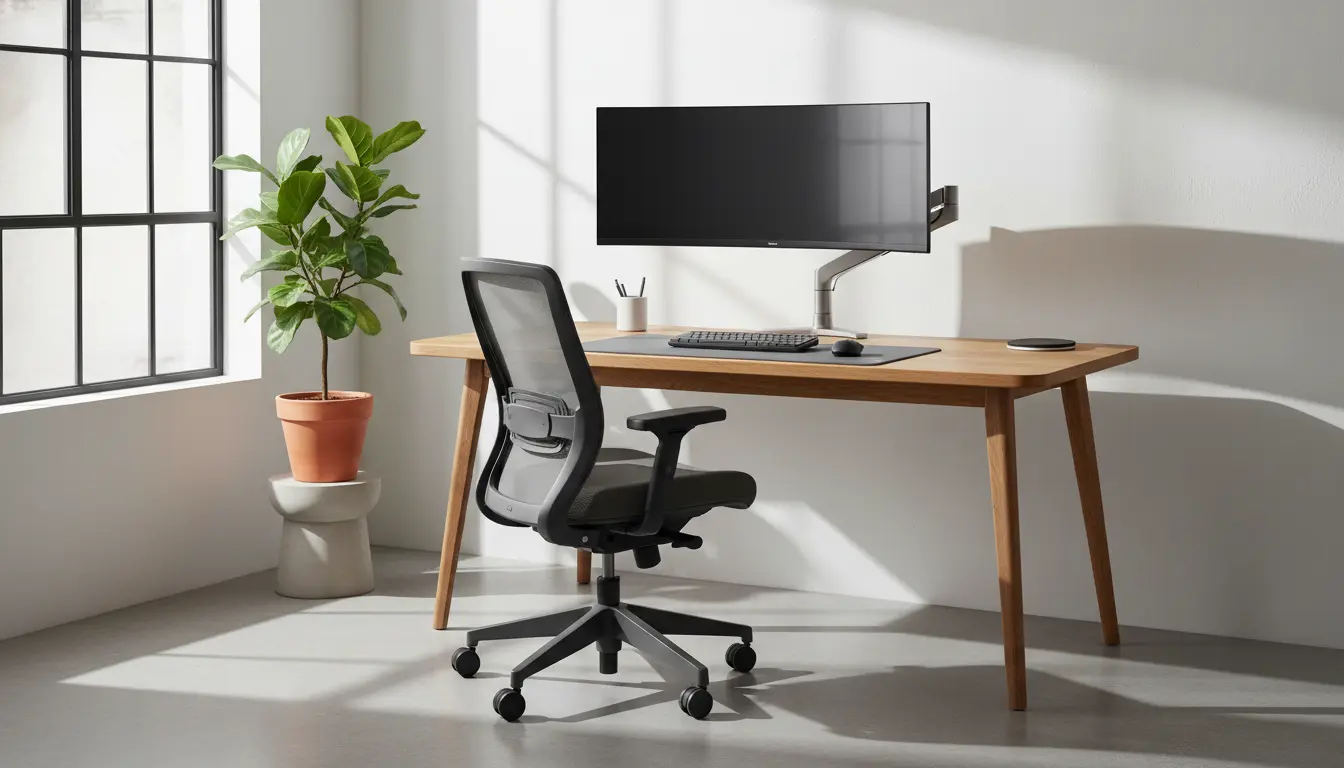
Home office ergonomics principles
Good home office ergonomics reduce strain and help maintain focus over long work sessions. Small, well-targeted changes often give the biggest benefit.
This guide covers practical setup advice you can apply in a single session with common household items or minimal purchases.
Chair and seating for home office ergonomics

Start with a chair that supports your lower back. If you do not have a dedicated office chair, use a cushion or rolled towel to support the lumbar curve.
Adjust seat height so your feet rest flat on the floor and your knees are roughly at hip level. This alignment reduces pressure on hips and lower back.
Key chair adjustments
- Seat height: feet flat, thighs parallel to floor.
- Back support: lumbar support at the small of the back.
- Seat depth: 2 to 3 inches between seat edge and the back of your knees.
- Armrests: support elbows lightly to relax shoulders.
Monitor and screen placement for home office ergonomics
Proper monitor placement reduces neck and eye strain. Place the top third of the screen at or just below eye level.
Keep the monitor about an arm length away. If you wear progressive lenses, shift the screen slightly lower and further back as needed.
Dual screens and laptop setups
For dual monitors, place the primary monitor directly in front of you and the secondary off to the side. For laptops, use an external keyboard and a laptop stand to raise the screen.
Keyboard, mouse, and input devices
Keep the keyboard low enough that your forearms are parallel to the floor or slightly declined. This position minimizes wrist extension.
Use a mouse that fits your hand and keep it close to the keyboard. Avoid reaching forward for long periods.
Tips to reduce strain
- Place keyboard directly in front of you to avoid twisting your torso.
- Use a wrist rest only as a reminder to keep neutral posture, not for prolonged pressure.
- Consider an ergonomic split keyboard or vertical mouse if wrist pain persists.
Lighting and visual comfort
Good lighting reduces eye strain and improves alertness. Use a mix of ambient and task lighting to avoid glare on screens.
Position monitors perpendicular to windows when possible to minimize reflections. Increase font size and contrast for comfortable reading.
Movement and microbreaks for home office ergonomics
Sitting continuously increases risk of discomfort. Schedule movement breaks every 30 to 60 minutes.
Simple microbreaks like standing for a minute, walking to refill water, or performing shoulder rolls restore circulation and reduce stiffness.
Sample microbreak routine
- Every 30 minutes: stand and stretch for 60 seconds.
- Every 60 minutes: walk for 5 minutes and do light neck and shoulder mobility.
- Every 2 hours: perform a 10 minute movement or exercise session.
Accessories that improve home office ergonomics
Targeted accessories can deliver big improvements without a full equipment upgrade. Consider these budget-friendly items.
- Adjustable laptop stand to raise screen height.
- External keyboard and mouse for better hand positioning.
- Footrest if your feet do not reach the floor comfortably.
- Monitor riser or stack of books to set correct screen height.
Quick checklist for immediate improvements
- Adjust chair so feet are flat and lower back supported.
- Raise monitor so the top of the screen is at eye level.
- Position keyboard and mouse close to body to avoid reaching.
- Set a timer for microbreaks and stand regularly.
- Improve lighting to reduce glare and increase contrast.
Short, frequent breaks are more effective at reducing fatigue than a single long break. A 60 second stretch every 30 minutes can improve comfort and productivity.
Real world example: Case study
Sarah is a graphic designer who worked from her kitchen table and reported neck pain after three months. She followed a focused ergonomics plan over two weeks.
Changes she made included raising her laptop on a stand, adding an external keyboard, adjusting chair height with a cushion, and using a task lamp. She also set a phone timer to stand and move every 45 minutes.
After two weeks she reported less neck pain, improved concentration, and fewer afternoon headaches. Minimal cost and simple behavior adjustments produced measurable benefits.
When to seek professional help
If pain or numbness persists despite ergonomic changes, consult a healthcare professional. Persistent symptoms can require medical assessment or physical therapy.
An occupational therapist or ergonomist can provide personalized adjustments for complex or chronic problems.
Conclusion: Make small changes that last
Home office ergonomics is about practical, repeatable habits as much as equipment. Start with simple adjustments and add targeted accessories when needed.
Track changes over two weeks to measure impact. Small improvements in posture, screen placement, and movement lead to better comfort and sustained productivity.